
How to Use Multipoint Bluetooth: Connect Earbuds to Two Devices Without Re-Pairing
Amazon Affiliate Disclosure
Earsbud.com may earn a commission when readers purchase products through qualifying affiliate links. This does not increase the price you pay. Any earbuds, accessories, replacement products, or buying suggestions mentioned on this page should be judged by compatibility, reliability, comfort, battery life, app support, and long-term value.
Multipoint Bluetooth is one of the most useful earbud features for people who move between devices all day. It lets one pair of earbuds stay connected to two devices at the same time, such as your phone and laptop, without manually disconnecting and re-pairing every time.
When it works well, multipoint feels invisible. You can listen to music from your laptop, answer a phone call from your mobile, return to the laptop meeting, then switch back to your phone for a podcast. When it works badly, it feels chaotic. Audio jumps to the wrong device, calls interrupt music, one device refuses to connect, the companion app cannot find the earbuds, or the earbuds keep cutting out.
This earbuds guide explains how to use multipoint Bluetooth properly, how to connect earbuds to two devices, how audio priority works, why multipoint can cause connection problems, and how to fix common issues with AirPods-style switching, Samsung Galaxy Buds, Sony, Bose, JBL, Soundcore, Jabra, Beats, Nothing Ear, and other multipoint Bluetooth earbuds.
This becomes even more important if your earbuds are switching between phones, laptops, tablets, and travel devices daily, because cleaner charging contacts, microphones, and ear tips can reduce avoidable pairing, call-quality, and charging issues. For safe maintenance, see our full guide on how to clean earbuds.
Quick Picks
| Problem | Start Here | Likely Cause | Best Fix |
|---|---|---|---|
| Want to connect earbuds to phone and laptop | Basic setup | Multipoint not enabled yet | Pair first device, pair second device, enable multipoint |
| Earbuds connect to the wrong device | Device priority | Laptop or phone takes control first | Pause old device, manage active audio |
| Phone calls interrupt laptop audio | Calls and priority | Calls usually take priority | Adjust call device and app settings |
| Earbuds keep switching devices | Switching problems | Both devices are active | Disable audio on one device |
| Multipoint not working | Compatibility check | Earbuds or source device lacks support | Check app, firmware, product specs |
| App cannot detect earbuds | App conflicts | Earbuds connected to another device | Open app on primary phone, disconnect second device |
| Audio cuts out with multipoint | Dropout section | Switching conflict or weak signal | Turn off multipoint temporarily |
| Battery drains faster | Battery section | Two connections need management | Disable multipoint when not needed |
| Want shared listening | Multipoint vs Auracast | Multipoint is not the same as broadcast audio | Use device-specific audio sharing or Auracast |
| Buying new earbuds | Upcoming models | Not all earbuds handle multipoint well | Choose app-controlled multipoint |
What Is This Guide For?
This guide is for anyone trying to use multipoint Bluetooth earbuds with two devices.
It covers:
- How to use multipoint Bluetooth
- How to connect earbuds to two devices
- Bluetooth earbuds two devices simultaneously
- Multipoint connection on earbuds
- Phone and laptop Bluetooth switching
- Multipoint Bluetooth calls
- Multipoint earbuds not switching correctly
- Multipoint earbuds connecting to the wrong device
- Earbuds app not detecting during multipoint
- Multipoint battery drain
- Multipoint vs Bluetooth audio sharing
- Multipoint vs Auracast
- Multipoint troubleshooting for calls, laptops, tablets, and phones
Who Needs This Guide?
You need this guide if:
- You use earbuds with a phone and laptop.
- You take calls on your phone while working on your computer.
- You want earbuds to switch between meetings and music.
- You are tired of disconnecting earbuds manually.
- Your earbuds keep connecting to the wrong device.
- You use a work laptop and personal phone.
- You use a tablet for video and phone for calls.
- You want to know whether multipoint is worth buying.
- You are comparing earbuds with multipoint, LE Audio, or Auracast.
- Your earbuds cut out or drain faster when connected to two devices.
Multipoint is especially useful for remote workers, students, commuters, gamers, business users, content creators, and anyone who keeps earbuds connected across multiple screens.
For readers comparing low-latency wireless models beyond this section, our complete guide to the Best earbuds for gaming explains how gaming earbuds differ by platform, latency mode, microphone quality, comfort, and everyday audio performance.
Benefits of Multipoint Bluetooth Earbuds
Multipoint Bluetooth can help you:
- Connect earbuds to two devices without constant re-pairing
- Take phone calls while using a laptop
- Switch between music, meetings, podcasts, and calls
- Avoid Bluetooth menu frustration
- Reduce pairing wear and device confusion
- Keep work and personal devices connected
- Improve productivity during remote work
- Use one pair of earbuds across phone, laptop, and tablet
- Avoid carrying separate earbuds for each device
- Recover faster when moving between environments
The real benefit is not just two-device connection. It is continuity. Your earbuds become a bridge between your digital spaces.
What Is Multipoint Bluetooth?
Multipoint Bluetooth allows one audio device, such as earbuds or headphones, to maintain active Bluetooth connections with more than one source device at the same time.
In the most common earbud setup, multipoint means:
- Device 1: smartphone
- Device 2: laptop, tablet, or desktop
You may listen to audio from one device while the earbuds remain connected to the second. When a call, meeting, or active media event happens on the other device, the earbuds may switch automatically or let you switch manually.
Bluetooth LE Audio is also changing how multi-device audio may work in the future. The Bluetooth SIG describes LE Audio as the next-generation Bluetooth audio architecture operating over Bluetooth Low Energy, adding new capabilities such as Multi-Stream Audio and Auracast broadcast audio. Multi-Stream Audio is designed to enable multiple independent synchronized audio streams, and the Bluetooth SIG notes that this can help improve truly wireless earbuds and make switching between multiple source devices smoother. (Bluetooth® Technology Website)
Multipoint Bluetooth vs Normal Bluetooth Pairing
Normal Bluetooth pairing usually means your earbuds connect to one active source device at a time.
Multipoint means the earbuds can keep two source devices connected.
| Feature | Normal Bluetooth | Multipoint Bluetooth |
|---|---|---|
| Active source devices | Usually one | Usually two |
| Phone + laptop connection | Manual switching | Simultaneous connection |
| Call handling | One device only | Calls can interrupt media |
| Re-pairing needed | More often | Less often |
| Device switching | Manual | Automatic or app-managed |
| Best for | Simple listening | Work, calls, multitasking |
| Possible downside | Less flexible | More switching confusion |
Multipoint is not the same as connecting two pairs of earbuds to one phone. That is audio sharing, dual audio, or broadcast audio depending on the system.
Multipoint Bluetooth vs Auracast vs Dual Audio
These terms are often confused.
| Feature | What It Means | Example Use |
|---|---|---|
| Multipoint Bluetooth | One pair of earbuds connected to two source devices | Earbuds connected to phone and laptop |
| Dual Audio / Audio Sharing | One source plays to two audio devices | Phone plays to two earbuds/headphones |
| Auracast Broadcast Audio | One source broadcasts to many compatible receivers | Airport TV, public venue audio, shared public broadcast |
| Multi-Stream Audio | Multiple synchronized streams within LE Audio architecture | Better true wireless stereo behavior and smoother source switching |
Auracast is not a replacement for multipoint in the simple phone-plus-laptop sense. Auracast is a broadcast model where an audio source can broadcast to many compatible receiving devices; the Bluetooth SIG describes Auracast as enabling an audio source to broadcast one or more streams to unlimited nearby audio sink devices. (Bluetooth® Technology Website)
Does Your Earbud Model Support Multipoint?
Not all earbuds support multipoint. Some premium earbuds do. Some budget earbuds do not. Some models support multipoint only after a firmware update. Some support multipoint but disable certain codecs or features when it is active.
How to Check
Look for these terms in the app, manual, or product page:
- Multipoint
- Dual connection
- Dual-device connection
- Connect to two devices
- Simultaneous connection
- Multi-device pairing
- Seamless device switching
- Bluetooth multipoint
- Two-device connection
Where to Check
| Place | What to Look For |
|---|---|
| Companion app | Toggle for multipoint or dual connection |
| Bluetooth settings | Two connected devices listed |
| Manual | “Connect to two devices simultaneously” |
| Firmware notes | Multipoint added or improved |
| Product specs | Bluetooth multipoint support |
| Brand support page | Model-specific instructions |
If your earbuds do not appear on either device, fix the connection foundation first with how to fix earbuds not connecting.
How to Use Multipoint Bluetooth Step by Step
The exact steps vary by brand, but the general sequence is similar.
Step 1: Update the Earbuds First
Before setting up multipoint:
- Charge both earbuds.
- Charge the case.
- Open the companion app.
- Check firmware version.
- Install available updates.
- Restart or reset if the app recommends it.
Multipoint issues are often firmware-related. Bluetooth standards and device-switching behavior are software-heavy.
For safe firmware steps, use how to update earbud firmware before relying on multipoint for work calls or meetings.
Step 2: Pair the Earbuds to the First Device
Start with your primary device. For most people, that is the phone.
- Put earbuds in pairing mode.
- Open Bluetooth settings on your phone.
- Select the earbuds.
- Confirm they connect.
- Open the companion app.
- Enable multipoint or dual-device connection if required.
Step 3: Pair the Earbuds to the Second Device
Now add your laptop, tablet, or second phone.
- Keep earbuds powered on.
- Put earbuds back into pairing mode if needed.
- Open Bluetooth settings on the second device.
- Select the earbuds.
- Confirm connection.
- Return to the companion app and check both devices are listed.
Some earbuds require you to disconnect from the first device briefly to pair the second. Others stay connected while entering pairing mode.
Step 4: Confirm Both Devices Are Connected
Check:
- Phone Bluetooth shows earbuds connected.
- Laptop Bluetooth shows earbuds connected.
- Companion app shows two devices.
- Audio plays from one device at a time.
- Calls can interrupt media if supported.
Step 5: Test Priority
Play music on your laptop. Then call your phone from another number or start a voice memo/call test.
Observe:
- Does the phone call interrupt laptop audio?
- Does laptop audio pause?
- Does audio return after the call?
- Do the earbuds reconnect to both devices?
- Does the app still detect them?
This test tells you how your earbuds handle priority.
How Multipoint Bluetooth Priority Works
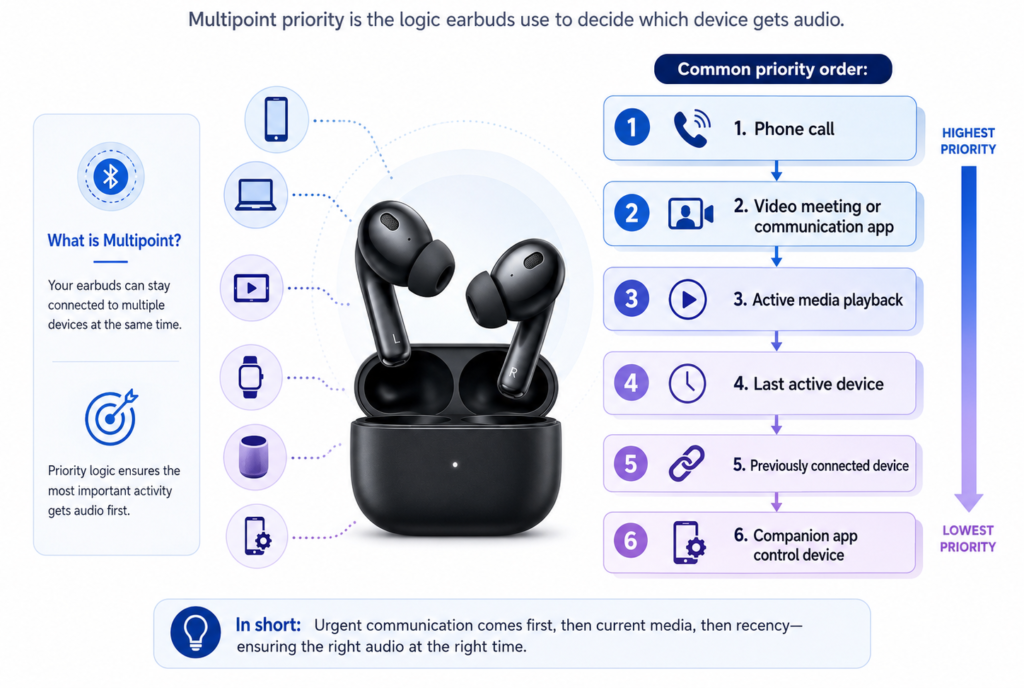
Multipoint priority is the logic earbuds use to decide which device gets audio.
Common priority order:
- Phone call
- Video meeting or communication app
- Active media playback
- Last active device
- Previously connected device
- Companion app control device
Calls usually override media. If your phone rings while you are watching a video on your laptop, the earbuds may switch to the phone.
Priority Examples
| Situation | What Usually Happens |
|---|---|
| Music on laptop, phone rings | Earbuds switch to phone call |
| Phone podcast playing, laptop meeting starts | Earbuds may switch to laptop |
| Both devices play music | One wins, often the last active source |
| Laptop notification sound plays | May interrupt phone audio |
| Phone app opens earbud controls | App may take control |
| Second device wakes from sleep | Earbuds may reconnect or switch |
The problem is not that multipoint is broken. The problem is that two devices may both be trying to be “active.”
How to Use Multipoint Connection on Two Devices
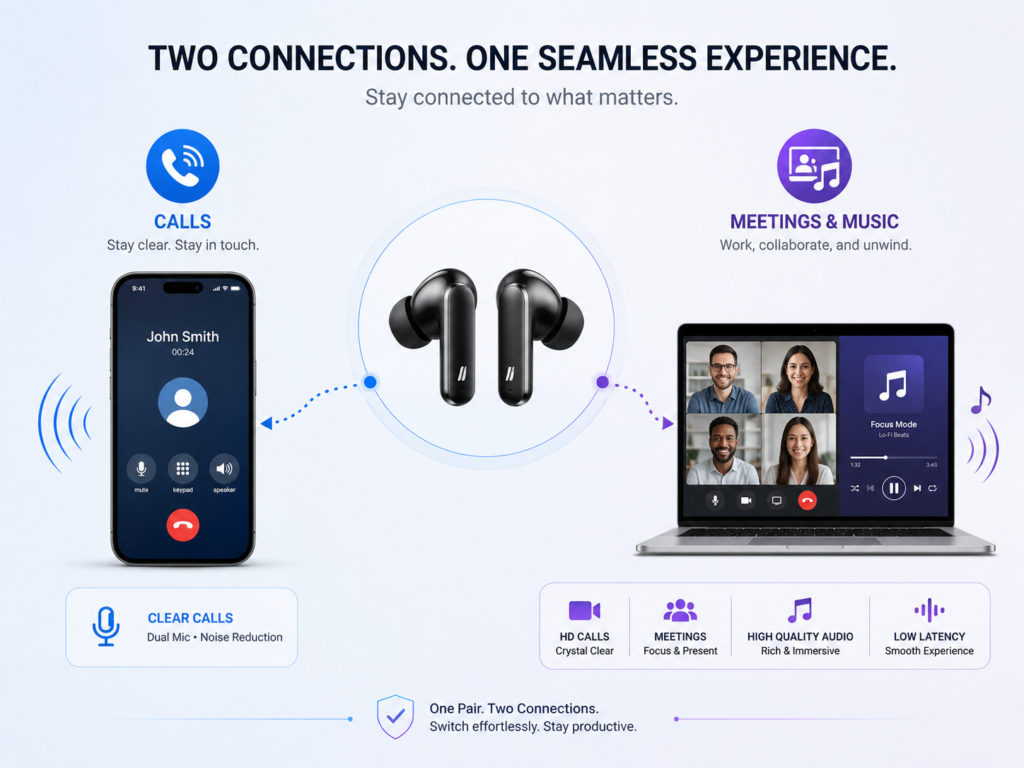
Best Phone + Laptop Setup
Use this arrangement:
- Phone: calls, messages, companion app
- Laptop: meetings, videos, music, work audio
Setup Tips
- Pair the phone first if the companion app lives there.
- Pair the laptop second.
- Keep the app installed on the phone.
- Disable system notification sounds on the laptop if they interrupt phone audio.
- Choose the correct audio output on the laptop.
- Use only one active audio source at a time.
- Keep both devices close during setup.
Best Phone + Tablet Setup
Use this arrangement:
- Phone: calls and messages
- Tablet: video, study, reading, streaming
This works well for students, travelers, and people who use tablets for media.
Best Work Phone + Personal Phone Setup
This can work, but it can also create call priority confusion.
Use this arrangement:
- Work phone: business calls
- Personal phone: music/messages
Turn off media audio on the phone that should only handle calls if your operating system allows it.
Multipoint Bluetooth on iPhone, Android, Windows and Mac
iPhone
iPhone works well with many multipoint earbuds, but AirPods use Apple’s own automatic switching ecosystem rather than conventional app-based multipoint in the same way many third-party earbuds do.
For third-party earbuds:
- Pair earbuds to iPhone.
- Enable multipoint in the brand app if available.
- Pair earbuds to laptop/tablet.
- Use Control Center to select audio output if needed.
Android
Android often gives more control over Bluetooth media and call audio.
Check:
- Media audio toggle
- Calls toggle
- LE Audio toggle if available
- Codec settings
- Companion app multipoint settings
- Battery optimization settings for app
Windows
Windows Bluetooth can be more complicated because laptops may use different profiles for music and calls.
Check:
- Output device
- Input microphone
- Stereo vs hands-free profile
- Teams/Zoom audio settings
- Bluetooth driver updates
- Windows updates
Windows is also moving toward more advanced Bluetooth LE Audio behavior. Recent reporting on Windows 11 shared audio notes that Microsoft’s shared audio preview is based on Bluetooth LE Audio and Auracast, but requires compatible PCs and audio devices, so support is still limited by hardware and rollout status. (Windows Central)
Mac
Mac switching can be smooth with Apple ecosystem devices but may need manual selection for third-party earbuds.
Check:
- Bluetooth settings
- Sound output
- Input microphone
- App-specific audio settings
- Nearby iPhone/iPad automatic switching
- Whether earbuds are connected elsewhere
If deciding between earbud types for work and outdoor use, read open-ear vs in-ear earbuds.
Calls, Meetings and Audio Priority
Multipoint is most valuable during calls, but calls are also where problems happen.
Common Call Behaviors
| Scenario | Expected Behavior | Possible Problem |
|---|---|---|
| Phone rings while laptop music plays | Earbuds switch to phone | Laptop audio may not resume |
| Laptop meeting starts while phone connected | Earbuds switch to meeting | Phone app may still control earbuds |
| Teams/Zoom uses microphone | Audio profile changes | Music quality may drop |
| Phone call ends | Earbuds return to previous device | Sometimes manual selection needed |
| Notification sound plays | Brief interruption | Disable system sounds |
Best Call Setup
- Use the device where the call occurs as both microphone and speaker.
- Close unused calling apps.
- Disable notification sounds on the second device.
- Keep the earbuds connected to only two devices, not several.
- Update firmware and app.
- Test before important meetings.
If call audio connects but sound quality drops or cuts out, use how to fix Bluetooth earbuds cutting out because call profiles, laptop drivers, and interference can affect multipoint stability.
Why Multipoint Earbuds Keep Switching Devices
Earbuds switch when they detect active audio, calls, notifications, app activity, or a device wake event.
Common Causes
- Laptop notification sound
- Phone call or app alert
- Media playing silently in browser tab
- Autoplay video
- Meeting app taking microphone access
- Tablet waking from sleep
- Companion app opening on one device
- Two devices both trying to play audio
- Multipoint priority bug
- Firmware issue
Fixes
| Problem | Fix |
|---|---|
| Laptop keeps interrupting | Mute system sounds |
| Browser steals audio | Close autoplay tabs |
| Calls interrupt music | Expected behavior; adjust call settings |
| Tablet keeps reconnecting | Turn off Bluetooth on tablet |
| Earbuds jump to wrong phone | Remove old pairing |
| App loses connection | Disconnect second device temporarily |
| Switching feels random | Reset earbuds and re-pair both devices |
Companion App Problems with Multipoint Earbuds
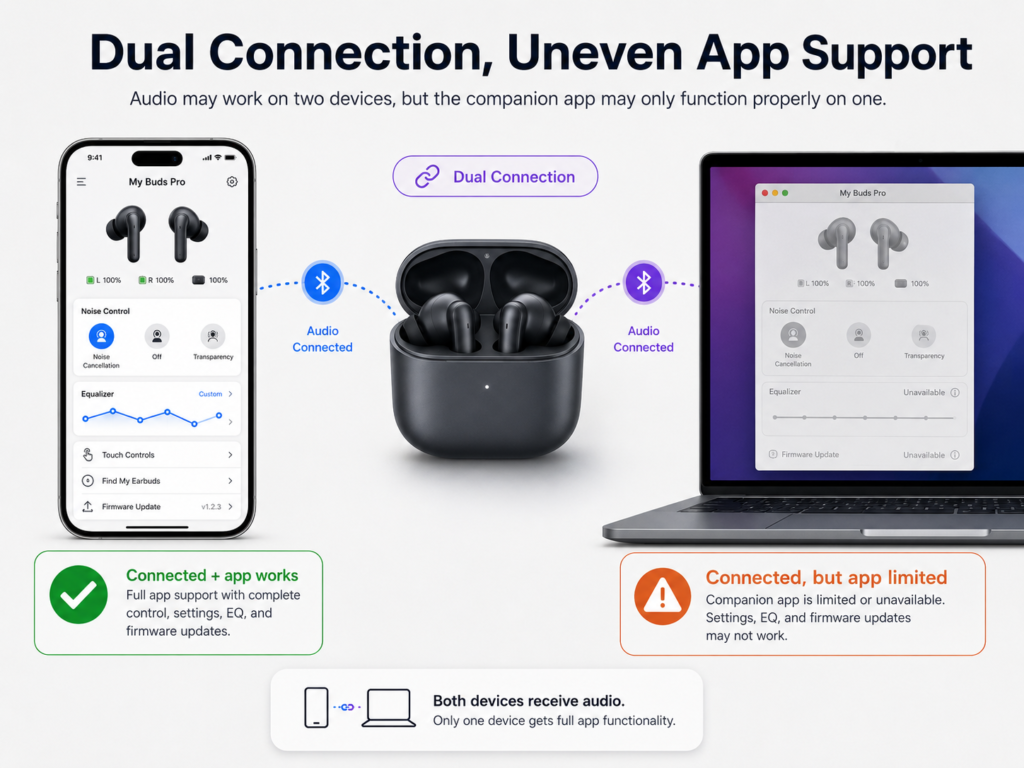
Some earbuds are connected to two devices, but the companion app only works correctly on one.
Why It Happens
- App is installed on one phone only.
- Earbuds are actively connected to laptop.
- Phone Bluetooth connection is idle.
- App permissions are disabled.
- Battery saver blocks app.
- Earbuds are connected to another phone.
- Multipoint is confusing app control priority.
Fix
- Open the app on the primary phone.
- Pause audio on the second device.
- Keep earbuds close.
- Disconnect the second device temporarily if needed.
- Enable Bluetooth/location permissions where required.
- Update the app.
- Reopen the case or restart earbuds.
If the app still cannot detect the earbuds, follow reset guides for popular earbud brands and then re-enable multipoint after pairing is clean.
Multipoint Bluetooth and Audio Cutting Out
Multipoint can increase audio instability if two devices compete for audio control.
Why It Cuts Out
- Two active audio streams
- Weak Bluetooth signal
- Laptop driver issue
- High-resolution codec conflict
- Notifications interrupting media
- Earbuds switching priority
- Old firmware
- Low battery
- Device sleep/wake behavior
Fix
- Test with multipoint off.
- Test with phone only.
- Test with laptop only.
- Re-enable multipoint.
- Disable notification sounds.
- Update firmware.
- Keep devices close.
- Reset and re-pair if instability continues.
If dropouts continue even with one device connected, move to how to fix Bluetooth earbuds cutting out.
Does Multipoint Bluetooth Drain Battery Faster?
Multipoint can drain more battery because the earbuds manage two connections instead of one. The difference depends on the earbud chip, firmware, active audio state, call use, codec, and distance from devices.
Battery Drain Factors
| Factor | Battery Impact |
|---|---|
| Two idle connections | Low–Medium |
| Frequent device switching | Medium |
| Calls and meetings | High |
| Weak signal to one device | Medium–High |
| High-res codec | Medium–High |
| ANC + multipoint | High |
| Companion app background sync | Low–Medium |
Battery Tips
- Turn off multipoint when using only one device.
- Keep both source devices close.
- Avoid high-res mode during long workdays.
- Disable ANC when not needed.
- Close unused meeting apps.
- Keep firmware updated.
For deeper runtime help, read battery life tips for earbuds.
Multipoint vs Manual Switching
| Category | Multipoint Bluetooth | Manual Switching |
|---|---|---|
| Convenience | Excellent | Slower |
| Reliability | Good if implemented well | Often more predictable |
| Battery use | Slightly higher | Lower |
| Best for calls | Strong | Requires manual action |
| Best for simple music | Not always needed | Good |
| Risk of wrong-device audio | Higher | Lower |
| Work laptop + phone | Excellent | Annoying |
| Gaming | Mixed | Often better manually |
| Travel | Useful | Simple |
| Troubleshooting complexity | Higher | Lower |
Multipoint is worth it if you switch devices often. If you mostly listen from one phone, manual switching may be simpler and more stable.
Multipoint Troubleshooting Matrix
Multipoint Troubleshooting Matrix
Select the multipoint earbuds problem you are facing. The tool will show the likely cause, a quick diagnostic test, and the best fix.
What Multipoint Bluetooth Costs
Multipoint itself does not cost money once your earbuds support it, but better multipoint usually appears in mid-range and premium earbuds.
| Item | Estimated Cost | When Needed |
|---|---|---|
| Enable multipoint in app | $0 | Supported earbuds |
| Firmware update | $0 | Feature added or bug fixed |
| Reset and re-pair | $0 | Switching problems |
| Better Bluetooth adapter for PC | $15–$60 | Weak laptop Bluetooth |
| New earbuds with multipoint | $50–$300+ | Current earbuds lack support |
| Premium earbuds with advanced multipoint | $150–$350+ | Heavy phone/laptop use |
| Replacement case or earbud | $40–$120+ | Hardware issue, not multipoint issue |
When Upgrading Makes Sense
Upgrade if:
- Your earbuds do not support multipoint.
- You use phone and laptop every day.
- Manual switching wastes time.
- Calls are central to your work.
- Your current earbuds connect unreliably.
- The app has no device manager.
- Firmware support is poor.
- Battery life is weak with two devices.
- You want future LE Audio or Auracast support.
Risks and Limitations of Multipoint Bluetooth
1. Not All Multipoint Works the Same
Some earbuds let two devices stay connected smoothly. Others technically support multipoint but switch slowly or unpredictably.
2. Codec Restrictions
Some earbuds disable high-resolution codecs when multipoint is active. For example, a model may support LDAC with one device but switch to AAC or SBC when connected to two devices.
3. Battery Drain
Two connections can reduce runtime, especially with calls, ANC, and weak signal.
4. Wrong Device Priority
A laptop notification can interrupt phone audio. A phone call can interrupt a meeting. A tablet waking from sleep can steal the connection.
5. App Confusion
The companion app may not connect reliably if the earbuds are actively controlled by another device.
6. Laptop Bluetooth Problems
Laptop Bluetooth drivers and profiles can cause more issues than phone Bluetooth.
7. Reset Complexity
When multipoint breaks, you may need to forget the earbuds from two devices, reset the earbuds, and re-pair both devices in order.
Trends & Latest Tech in Multipoint Bluetooth
LE Audio and Multi-Stream Audio
Bluetooth LE Audio is the major technical shift behind many upcoming audio improvements. The Bluetooth SIG explains that LE Audio operates over Bluetooth Low Energy and introduces features that can improve performance and enable new audio use cases. It also highlights Multi-Stream Audio, which can support multiple synchronized audio streams and help truly wireless earbuds improve stereo imaging, voice assistant use, and switching between multiple source devices. (Bluetooth® Technology Website)
Auracast Broadcast Audio
Auracast is different from multipoint, but it will shape how users think about Bluetooth audio. Instead of one pair of earbuds connecting to two personal devices, Auracast allows a source to broadcast audio to many compatible receivers. The Bluetooth SIG describes Auracast as a broadcast audio feature built into LE Audio, enabling one source to broadcast one or more streams to unlimited nearby audio sink devices.
Windows and Shared Audio
Windows is moving toward more LE Audio-based shared listening features, but availability depends on operating system support, PC hardware, and compatible audio devices. Recent Windows coverage describes shared audio preview features based on Bluetooth LE Audio and Auracast, with compatibility limitations for many current PCs. (Windows Central)
App-Controlled Device Managers
More earbuds now include device lists inside companion apps. This is important because good multipoint needs clear control: which two devices are connected, which one has priority, and which one should be removed.
Multipoint + Smart Cases
Smart charging cases may become multipoint control hubs. Future cases may show connected devices, switch active audio, display battery per device, or show whether phone, laptop, or tablet is currently controlling the earbuds.
Upcoming Models: What to Look For Before Buying
When buying multipoint earbuds, do not only check the word “multipoint.” Look for quality of implementation.
Multipoint Features That Matter
| Feature | Why It Matters |
|---|---|
| App-based device manager | Lets you choose connected devices |
| Two-device simultaneous connection | Core multipoint feature |
| Clear priority behavior | Reduces wrong-device switching |
| Firmware update history | Shows support quality |
| Stable laptop performance | Critical for work calls |
| Good mic mode | Important for meetings |
| Low battery impact | Helps all-day use |
| Codec transparency | Shows what changes in multipoint mode |
| LE Audio support | Future compatibility |
| Auracast support | Future shared audio use |
| Reset documentation | Helps recover from pairing conflicts |
| Case screen or status UI | May simplify switching |
Buying Rule
The best multipoint earbuds are not just the ones that connect to two devices. They are the ones that let you control those two devices without guessing.
FAQs
How do I use multipoint Bluetooth earbuds with two devices?
To use multipoint Bluetooth earbuds with two devices, first pair the earbuds to your primary device, usually your phone. Then enable multipoint or dual-device connection in the companion app if required. Put the earbuds back into pairing mode and pair them to the second device, such as a laptop or tablet. Once both are connected, test media on one device and a call or meeting on the other.
Can Bluetooth earbuds connect to two devices at the same time?
Yes, but only if the earbuds support multipoint Bluetooth or a similar dual-device connection feature. Standard Bluetooth pairing usually connects earbuds to one active source device at a time. Multipoint allows the earbuds to maintain two source connections, commonly a phone and laptop, so users can switch between calls, meetings, and media more easily.
Why do my multipoint earbuds keep connecting to the wrong device?
Multipoint earbuds connect to the wrong device when another saved device wakes first, plays a notification, starts a call app, or becomes the most recent active audio source. Turn off Bluetooth on the device you do not want to use, pause audio on the unwanted device, mute laptop notifications, or manage connected devices in the companion app.
Does multipoint Bluetooth reduce sound quality?
It can, depending on the earbuds. Some models reduce codec options when multipoint is enabled, especially if high-resolution codecs are not supported during dual-device connection. If sound quality changes, check the companion app or Bluetooth codec settings. For long work sessions, stable connection may matter more than maximum audio bitrate.
Does multipoint Bluetooth drain battery faster?
Multipoint Bluetooth can drain battery faster because the earbuds manage two connections instead of one. The effect may be small when both devices are idle, but it becomes more noticeable with calls, meetings, ANC, weak signal, frequent device switching, or high-resolution audio. Turn off multipoint when you only need one device.
People Also Ask
What is multipoint Bluetooth on earbuds?
Multipoint Bluetooth on earbuds is a feature that lets one pair of earbuds stay connected to two source devices at the same time. For example, your earbuds can stay connected to your phone for calls and your laptop for meetings or music. The earbuds then switch audio based on priority, active playback, or calls.
Why does my laptop interrupt my phone audio with multipoint?
Your laptop may interrupt phone audio because system notifications, browser tabs, meeting apps, or media playback briefly become active. Multipoint earbuds often switch to the device that sends active audio. Mute laptop system sounds, close autoplay tabs, pause laptop media, or disconnect the laptop when you want phone-only listening.
Can I use multipoint Bluetooth for two phones?
Yes, if your earbuds support multipoint, you can often connect them to two phones. This is useful for work phone plus personal phone setups. However, call priority can become confusing if both phones receive calls or notifications. Use the companion app or Bluetooth settings to control which phone handles calls and media.
Is multipoint the same as Bluetooth audio sharing?
No. Multipoint means one pair of earbuds connects to two source devices. Bluetooth audio sharing usually means one source device sends audio to two pairs of earbuds or headphones. Auracast broadcast audio is different again: it allows one compatible source to broadcast audio to many compatible receivers. The Bluetooth SIG describes Auracast as a broadcast audio feature within LE Audio. (Bluetooth® Technology Website)
Should I turn off multipoint when gaming?
Often, yes. Multipoint can introduce switching behavior or interruptions from a phone while you are gaming on a laptop, tablet, console adapter, or handheld. For gaming, low latency and stability matter. Disconnect the second device or disable multipoint if notifications, calls, or switching interrupt gameplay.
Multipoint Works Best When You Control the Priority
Multipoint Bluetooth is powerful, but it is not automatic perfection. It works best when you understand three things: which two devices are connected, which device has active audio priority, and which apps are allowed to interrupt.
For most users, the best setup is simple: phone plus laptop. Let the phone handle calls and the laptop handle work audio or media. Keep the earbuds updated, use the companion app, mute unnecessary notifications, and avoid running audio on both devices at the same time.
As LE Audio, Multi-Stream Audio, Auracast, and smarter companion apps mature, multi-device listening will become more flexible. But even now, multipoint can make wireless earbuds feel far more professional and convenient — provided you set it up with intention rather than letting every nearby device compete for your ears.