
How to Fix Earbuds Not Charging: Complete Troubleshooting Guide
Amazon Affiliate Disclosure
Earsbud.com may earn a commission when readers purchase products through qualifying affiliate links. This does not change the price you pay. Product recommendations, repair suggestions, cleaning tools, and accessory mentions should always be based on usefulness, compatibility, safety, and long-term value rather than commission alone.
Wireless earbuds feel simple until they stop charging. One minute they are in your ears during a walk, commute, gym session, video call, or late-night playlist. The next minute the case shows no light, one earbud stays dead, or both earbuds refuse to wake up even after sitting in the charging case overnight.
This guide explains how to fix earbuds not charging through a practical, step-by-step process that applies to AirPods, Samsung Galaxy Buds, Sony WF series, Bose, Beats, JBL, Soundcore, Nothing Ear, Jabra, Skullcandy, and most true wireless earbuds. The encouraging part is that charging issues rarely indicate a true battery failure. In most cases, the root cause is something simpler, such as dirty or oxidized charging contacts, a loose or damaged cable, a depleted charging case, firmware glitches, improper earbud alignment inside the case, moisture exposure, bent charging pins, or a case battery entering a protective shutdown mode.
For deeper troubleshooting across related issues, you can also explore the full library of repair and setup resources in the Earbuds Guides section, which covers charging, pairing, connectivity, and hardware faults in a structured way.
Apple’s official support guidance for AirPods follows a similar diagnostic order, beginning with power connection checks, charge status verification, cleaning the charging case and contacts, and performing a reset when necessary, which mirrors the standard troubleshooting logic used across most modern earbuds Apple Support.
Quick Jump
- Both earbuds not charging → Start with Case Power + Cable + Adapter Check
- One earbud not charging → Go to Single Earbud Contact + Seating Fix
- Case not charging → Go to Charging Port + Cable + Battery Diagnosis
- Earbuds charging slowly → Go to Power Source + Heat + Battery Aging
- Battery shows 100% then dies fast → Go to Battery Health & Calibration
- Wireless charging not working → Go to Alignment + Pad + Case Interference
- Wet earbuds not charging → Go to Moisture Damage Protocol
- After firmware update issues → Go to Software Reset + Firmware Fix Layer
What Is This Guide For?
This guide is for diagnosing and fixing Bluetooth earbuds charging problems at home before you spend money on repairs or replacements.
It covers:
- Earbuds that will not charge inside the case
- One earbud not charging
- Charging case not charging
- Earbuds charging only when pressed down
- Earbuds charging slowly
- Earbuds showing the wrong battery percentage
- AirPods not charging
- Samsung Galaxy Buds not charging
- Sony earbuds not charging
- Bose earbuds not charging
- Earbuds that died after moisture exposure
- Charging problems after a firmware update
For single-earbud maintenance issues, you can guide readers toward how to fix one earbud not working, since many cases are caused by imbalanced battery drain, debris in the speaker mesh, or pairing desynchronization between left and right channels. This helps users isolate whether the problem is hardware-related or simply a synchronization fault.
For connectivity-related issues that are not strictly charging failures, you should also connect this section with how to fix earbuds not connecting, as these problems are often rooted in Bluetooth pairing errors, cached device conflicts, or outdated firmware rather than physical damage or power issues.
Who Needs This Guide?
You need this guide if:
- Your earbuds do not charge when placed in the case.
- Your case light does not turn on.
- One side stays at 0%.
- Your earbuds connect while inside the case.
- The case charges but the earbuds do not.
- The earbuds charge only if you press them down.
- You cleaned them, but the problem returned.
- You are deciding whether to repair, replace, or buy new earbuds.
This guide is especially useful for users who rely on earbuds daily for calls, commuting, workouts, sleep, gaming, video editing, online meetings, travel, or gym sessions. Regular use exposes earbuds to sweat, skin oils, dust, pocket lint, makeup residue, earwax buildup, and repeated physical handling, all of which are common contributors to charging and contact-related issues.
For broader buying guides, troubleshooting, and earbud comparisons, visit Earsbud for practical wireless audio advice.
Benefits of Fixing Earbuds Not Charging Properly
Fixing the problem correctly can help you:
- Avoid unnecessary replacement costs
- Extend the life of your earbuds
- Prevent battery swelling or overheating risks
- Restore full stereo use
- Avoid damaging delicate charging pins
- Improve battery percentage accuracy
- Reduce future charging interruptions
- Know when the product is actually beyond repair
The main goal is not just to “make them charge again.” It is to find the real failure point: earbud, case, cable, charger, port, software, moisture, or battery.
Before You Start: Safety Rules
Earbuds are small lithium-battery devices. Treat charging problems carefully.
Do not:
- Charge wet earbuds.
- Use metal pins, needles, knives, or screwdrivers inside the charging case.
- Spray cleaner directly into the case.
- Use high heat from a hair dryer.
- Force the earbud into the case.
- Keep using earbuds with swelling, burning smell, melted plastic, or excessive heat.
- Plug a visibly damaged case into power.
Use:
- Dry microfiber cloth
- Dry cotton swab
- Soft anti-static brush
- Wooden toothpick only with gentle pressure
- 70% isopropyl alcohol only on a cloth or swab, not poured into the case
- Original or certified USB-C, Lightning, or charging cable
- Reliable wall adapter
How Earbuds Charging Actually Works
Most true wireless earbuds charge through a three-part system:
- The charging case battery stores power.
- Metal charging pins or contact pads transfer power from the case to each earbud.
- The earbud battery and battery management chip regulate charging inside each bud.
If any part of that chain fails, the earbuds may stop charging.
Simple Charging Chain
| Charging Stage | What Happens | What Can Go Wrong |
|---|---|---|
| Wall adapter to cable | Power leaves adapter | Weak adapter, faulty cable |
| Cable to case port | Case receives power | Dirty USB-C/Lightning port, damaged socket |
| Case battery | Case stores energy | Dead case battery, firmware lockup |
| Case pins to earbuds | Power transfers to earbuds | Dirt, oil, earwax, misalignment |
| Earbud battery | Earbud accepts charge | Deep discharge, battery wear, internal fault |
That is why the best troubleshooting order is not random. You start with the power source, then the case, then the charging contacts, then software, then battery health.
Step-by-Step: How to Fix Earbuds Not Charging
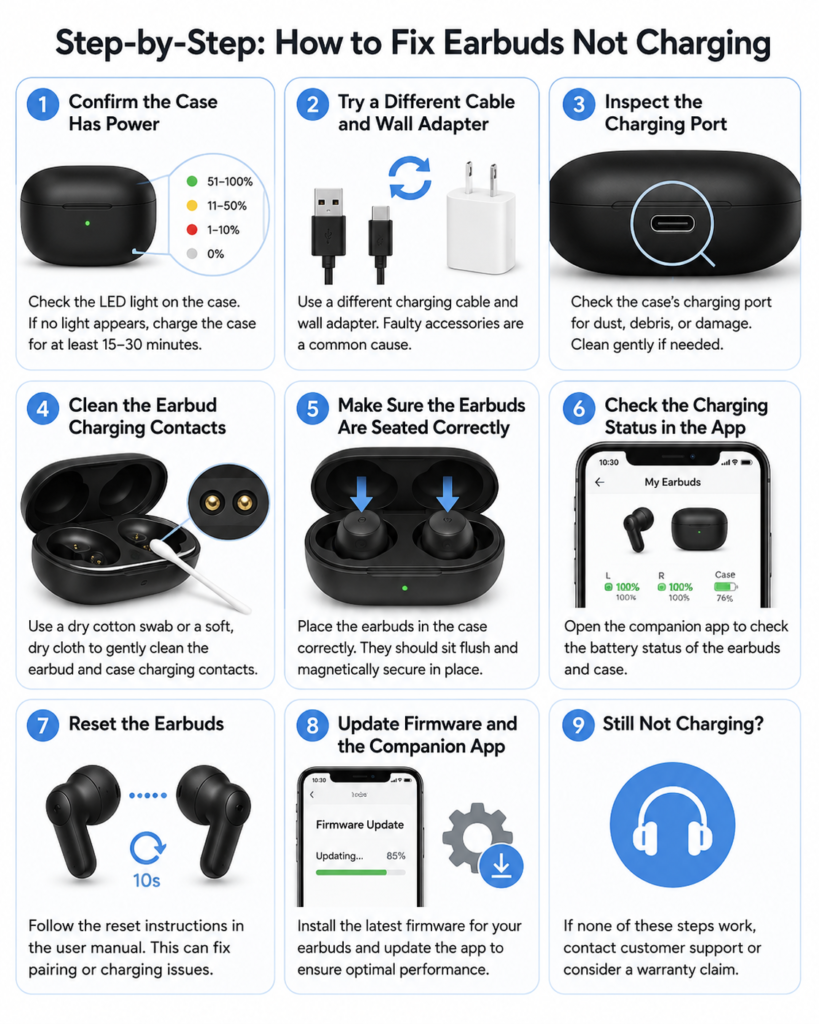
Step 1: Confirm the Case Has Power
Place both earbuds in the case, close the lid, and plug the case into a known working charger for at least 15–30 minutes.
For AirPods and AirPods Pro, Apple recommends placing the earbuds in the case, closing the lid, connecting the case to power, and charging for at least 15 minutes before judging whether charging has failed. (Apple Support)
What to Check
- Does the case LED turn on?
- Does your phone show a case battery percentage?
- Does the case become slightly warm but not hot?
- Does the battery percentage increase after 15–30 minutes?
- Does the case charge with cable but not wirelessly?
- Does it charge with one cable but not another?
If the case is completely dead, the earbuds cannot charge even if the earbuds themselves are fine.
Step 2: Try a Different Cable and Wall Adapter
A surprising number of “earbuds not charging” cases are actually cable problems.
Try:
- Another USB-C cable
- Another Lightning cable
- Another wall adapter
- A direct wall outlet instead of a laptop USB port
- A lower-power 5V adapter if fast chargers behave strangely
- A different outlet
Some laptop USB ports, car USB ports, monitor ports, and old power banks may not deliver stable current. A case may show a light but not actually charge properly.
Best Practice
Use a certified cable and a reputable wall charger. Cheap cables often fail internally before they look damaged externally.
Step 3: Inspect the Charging Port
Look inside the charging port of the case.
Common debris includes:
- Pocket lint
- Dust
- Sand
- Loose fabric fibers
- Corrosion
- Dried moisture residue
- Bent USB-C tongue
- Damaged Lightning pins
Use a flashlight. If you see debris, gently remove it with a soft brush or wooden toothpick. Do not scrape aggressively.
If the charging cable feels loose, wobbly, or only works at a certain angle, the case port may be damaged.
Step 4: Clean the Earbud Charging Contacts
This is the most important fix for wireless earbuds not charging.
Remove both earbuds and inspect:
- Metal dots on the earbuds
- Spring pins inside the case
- Charging wells
- Ear tips
- Wax guards
- Silicone wings or stabilizers
- Magnets and seating grooves
Even a thin film of skin oil or earwax can block charging contact.
Sony’s official troubleshooting guidance for truly wireless headphones specifically highlights charging problems related to placement, sensors, firmware, and model-specific charging behavior. (Sony)
Safe Cleaning Method
- Remove ear tips.
- Wipe the earbud body with a dry microfiber cloth.
- Use a dry cotton swab on the metal charging contacts.
- Brush the case pins gently.
- If needed, lightly dampen a swab with isopropyl alcohol.
- Let everything dry fully before charging.
- Reinsert the earbuds and check the LED/app status.
Do not pour alcohol into the case. Do not use water. Do not use sharp metal tools.
A clean charging path matters as much as a clean speaker mesh, which is why our earbud cleaning guide explains how to remove wax, oil, and debris without damaging delicate parts.
Step 5: Make Sure the Earbuds Are Seated Correctly
Earbuds can look like they are inside the case while failing to touch the charging pins.
Check for:
- Ear tips too large for the case
- Third-party foam tips blocking the lid
- Silicone wings installed incorrectly
- Earbud not clicking into place
- Case lid not closing fully
- Dirt under the earbud
- Misaligned magnet
- Warped case insert
A common sign of poor seating is when the earbuds remain connected to your phone while inside the case. Properly seated earbuds usually disconnect and begin charging.
Quick Test
Put the earbuds in the case and open your Bluetooth settings. If the earbuds stay connected while the case lid is closed, the case may not recognize that they are docked.
Step 6: Check the Charging Status in the App
Many earbuds show separate battery levels for:
- Left earbud
- Right earbud
- Charging case
Use the brand app when available:
| Brand | App or System Panel |
|---|---|
| Apple AirPods | iPhone battery widget, Bluetooth panel, Mac menu |
| Samsung Galaxy Buds | Galaxy Wearable app |
| Sony WF earbuds | Sony Sound Connect / Headphones app |
| Bose earbuds | Bose app |
| Beats | iOS Bluetooth panel or Beats app |
| JBL | JBL Headphones app |
| Soundcore | Soundcore app |
| Nothing Ear | Nothing X app |
| Jabra | Jabra Sound+ app |
If the app shows one earbud missing, the issue may be docking, battery failure, firmware, or the earbud being fully drained.
Step 7: Reset the Earbuds
A reset can fix charging-status errors, pairing glitches, firmware lockups, and case recognition problems.
Apple’s reset process for AirPods includes placing them in the case, waiting, forgetting the device from Bluetooth settings, opening the lid, and holding the case setup button until the light flashes amber and then white for many models. (Apple Support)
Sony also provides model-specific reset and initialization procedures, including reset actions performed with the earbuds inside the charging case. (Sony)
For a complete step-by-step breakdown across major brands and models, see the full reset guide collection here: Reset Guides for Popular Earbud Brands.
Step 8: Update Firmware and the Companion App
Outdated software can interfere with charging detection, battery reporting, charging-case communication, sleep mode, over-discharge recovery, earbud-to-earbud synchronization, and Bluetooth reconnection.
Before moving to advanced troubleshooting, follow our complete guide on how to update earbuds firmware to check the installed version, prepare the earbuds correctly, and complete the update without interrupting the installation.
Sony’s troubleshooting guidance notes that updating headphone software may resolve charging issues before users move deeper into model-specific troubleshooting.
Update:
- Earbud firmware
- Companion app
- Phone operating system
- Bluetooth driver if using a PC
- Case firmware if supported
How to Fix One Earbud Not Charging
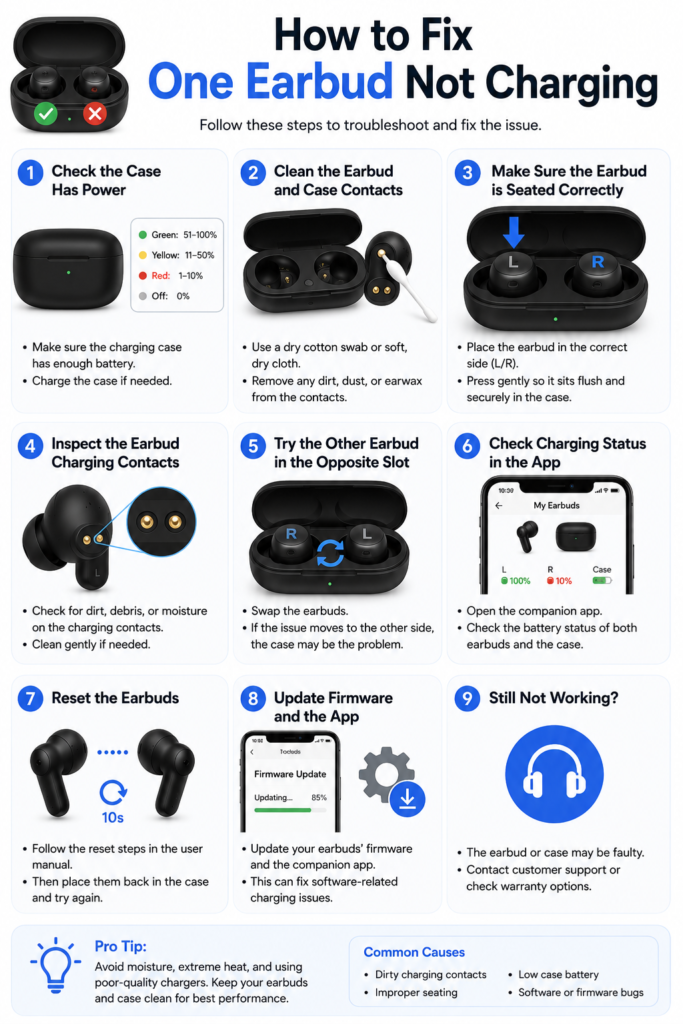
One earbud not charging is different from both earbuds not charging.
If only the left or right earbud is dead, the case itself may still be fine. The problem is usually isolated to one of these:
- Dirty contact on one earbud
- Dirty pin on one side of the case
- Ear tip preventing proper seating
- Dead battery in one bud
- Firmware desync
- Sensor not detecting docking
- Moisture damage
- Internal charging circuit failure
One Earbud Not Charging Checklist
| Test | What It Tells You |
|---|---|
| Clean both contacts | Rules out wax/oil blockage |
| Swap ear tips | Tests whether fit is blocking the lid |
| Press gently while docked | Shows whether contact alignment is weak |
| Check app battery levels | Confirms whether case detects the bud |
| Reset earbuds | Fixes sync or software lockup |
| Update firmware | Fixes known charging bugs |
| Leave docked for 30–60 minutes | Helps recover deep discharge |
| Try without silicone wings | Rules out accessory obstruction |
If one earbud only charges when you press it down, the issue is usually contact alignment, worn case pins, debris, or a slightly shifted ear tip/wing. That is a repair-or-replacement warning if cleaning does not solve it.
How to Fix Earbuds Case Not Charging
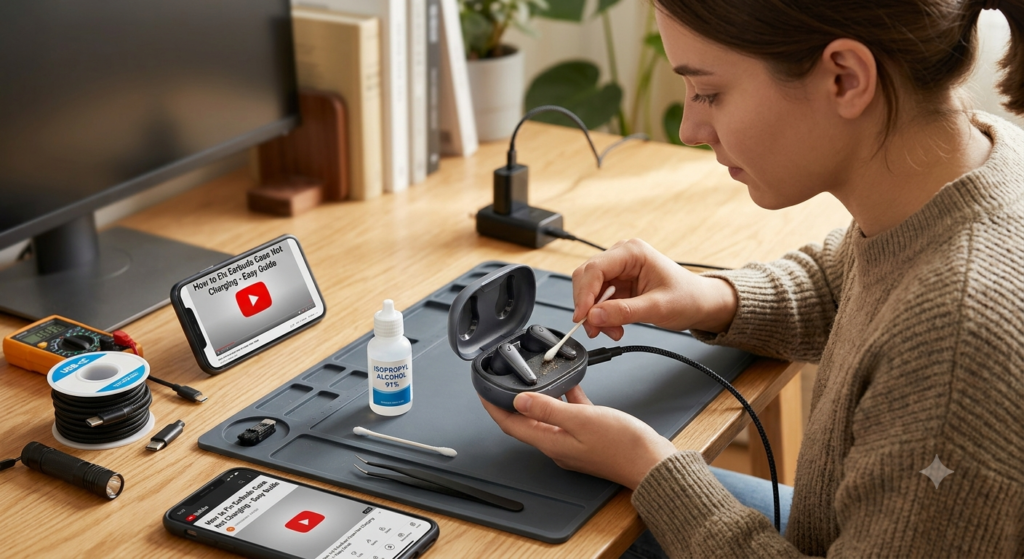
If the earbuds case is not charging, focus on the external power path first.
Common Case Charging Problems
| Symptom | Likely Cause | Fix |
|---|---|---|
| No LED when plugged in | Dead cable, dead adapter, dead case | Try another cable and outlet |
| LED blinks then stops | Protection mode, battery fault, firmware issue | Leave plugged in, reset case if possible |
| Charges only at an angle | Loose/damaged port | Replace cable; repair likely needed |
| Wireless charging fails | Misalignment or incompatible pad | Use cable, remove case cover |
| Case gets hot | Battery or charger issue | Stop charging immediately |
| Case charges but buds do not | Dirty pins, dead earbuds, bad internal contacts | Clean, reseat, reset |
USB-C and Lightning Port Issues
Modern earbuds cases are tiny, and the charging port is usually one of the most stressed parts. Pocket lint compresses inside the port until the cable can no longer seat fully. A cable may appear inserted while the power pins do not make full contact.
Clean gently and test again.
Wireless Charging Case Not Working
Wireless charging is convenient but less forgiving than cable charging.
Problems may come from:
- Case placed off-center
- Thick protective case cover
- Metal ring or accessory blocking charging
- Low-quality charging pad
- Qi compatibility issue
- Heat protection
- Case battery fault
Apple notes that wireless charging cases should be placed with the status light facing up on a Qi-compatible charger, and if the light does not turn on, users should reposition the case or connect by cable. (Apple Support)
Cable vs Wireless Charging Comparison
| Feature | Cable Charging | Wireless Charging |
|---|---|---|
| Reliability | Usually stronger | More position-sensitive |
| Speed | Usually faster | Often slower |
| Heat | Lower when using proper adapter | Can create more heat |
| Travel convenience | Needs cable | Needs pad |
| Troubleshooting value | Best diagnostic method | Not ideal for first test |
| Best use | Fixing and confirming power | Daily desk/nightstand charging |
If wireless charging fails but cable charging works, the earbuds are probably not dead. The issue is likely pad alignment, case cover thickness, or the wireless coil.
Why Earbuds Charge Slowly
Slow charging can feel like failure, but it may be caused by normal battery protection.
Common Causes
- Low-output USB port
- Dirty contacts
- Case almost empty
- Earbuds too hot
- Earbuds too cold
- Battery aging
- Background firmware update
- Wireless charging inefficiency
- Non-certified cable
- Case lid not closing properly
Charging Speed Reality Check
| Device Type | Typical Behavior |
|---|---|
| Premium earbuds | Fast top-up plus slower final charge |
| Budget earbuds | Slower case-to-earbud charging |
| Wireless charging case | Slower than cable |
| Aging earbuds | Slower and shorter runtime |
| Deeply drained earbuds | May take longer before LED/app response |
A short fast-charge feature does not mean the earbuds should always charge quickly from 0 to 100%. Lithium batteries usually slow down as they approach full capacity.
Battery Health: When Charging Works but Runtime Is Bad
Sometimes earbuds charge to 100% but die quickly. That is not the same as not charging.
Possible causes:
- Battery degradation
- One earbud battery aging faster
- ANC using more power
- Spatial audio using more power
- High volume
- Cold weather
- Frequent fast charging
- Case battery wear
- Firmware battery reporting error
Brand-Specific Charging Notes
AirPods Not Charging
Start with the case, cable, charge status, cleaning, and reset. Apple recommends charging AirPods in the case for at least 15 minutes and checking cable connections, charge status, case cleanliness, and reset options. (Apple Support)
Common AirPods charging issues:
- Dirty case wells
- Debris in Lightning/USB-C port
- Case not charging
- One AirPod not seating properly
- Optimized charging behavior misunderstood as failure
- Firmware or pairing glitch
Samsung Galaxy Buds Not Charging
Common Galaxy Buds issues include:
- One bud fully dead
- Case LED showing misleading status
- Contacts blocked by oil or debris
- Galaxy Wearable app not detecting one side
- Case battery drained
- Wireless PowerShare not aligned
- Firmware glitch
Use the Galaxy Wearable app to confirm whether the buds and case are detected separately.
Sony Earbuds Not Charging
Sony WF earbuds can be sensitive to case seating, sensors, firmware, and model-specific reset procedures. Sony’s troubleshooting guidance recommends software updates before deeper charging troubleshooting, and Sony reset instructions vary by model. (Sony)
Common Sony charging causes:
- Earbud not clicked into case
- Sensor covered during docking
- Case not connected to adequate power
- Firmware issue
- One earbud deeply discharged
- Battery degradation on older models
Bose Earbuds Not Charging
Common Bose charging issues:
- One earbud does not contact the pins
- Case pins need cleaning
- Earbud requires reseating
- Case battery problem
- Firmware or app issue
- Worn contact alignment
If one Bose earbud charges only when pressed down, contact alignment or case pin wear is likely.
JBL, Soundcore, Beats, Jabra, Nothing Ear, Skullcandy
For most other brands, the troubleshooting order remains the same:
- Charge the case.
- Test a different cable and adapter.
- Clean contact points.
- Confirm proper seating.
- Check the app.
- Reset earbuds.
- Update firmware.
- Inspect for water or impact damage.
- Contact support if still under warranty.
Troubleshooting Flowchart
Use this chart as an image or interactive section on the page.
| Step | Question | Yes | No |
|---|---|---|---|
| 1 | Does the case LED turn on when plugged in? | Go to Step 2 | Try new cable/adapter/port |
| 2 | Does the case battery increase? | Go to Step 3 | Case port or battery issue |
| 3 | Do both earbuds show charging? | Problem likely fixed | Go to Step 4 |
| 4 | Is only one earbud dead? | Clean/reseat/reset that side | Check full case failure |
| 5 | Are contacts visibly dirty? | Clean safely | Go to Step 6 |
| 6 | Do earbuds connect while inside the case? | Seating/contact problem | Go to Step 7 |
| 7 | Does reset restore charging? | Monitor battery health | Firmware or hardware issue |
| 8 | Does issue return often? | Consider repair/replacement | Continue normal use |
Charging Problem vs Real Cause
| Charging Symptom | Most Likely Cause | Difficulty | Cost Risk | Repair Urgency |
|---|---|---|---|---|
| Both earbuds dead, case dead | Cable, adapter, case battery | Easy | Low–High | Medium |
| One earbud dead | Contact dirt, bad seating, dead bud battery | Easy–Medium | Medium | Medium |
| Case charges, earbuds do not | Dirty pins, internal contact issue | Easy–Medium | Medium | High if recurring |
| Earbuds charge only when pressed | Worn pins or poor seating | Medium | Medium | High |
| Case hot while charging | Battery or charger fault | High risk | High | Immediate |
| Wireless charging fails only | Misalignment or pad issue | Easy | Low | Low |
| Battery shows 100% but drains fast | Battery aging | Medium | Medium–High | Medium |
| Charging stopped after update | Firmware glitch | Easy–Medium | Low | Medium |
| Earbuds got wet and won’t charge | Moisture damage | High risk | Medium–High | Immediate |
Costs: Repair, Replacement and Accessory Budget
Charging problems can cost nothing or almost as much as new earbuds, depending on the failure.
| Fix | Estimated Cost Range | When It Makes Sense |
|---|---|---|
| Cleaning contacts | $0–$10 | First step for almost everyone |
| New cable | $5–$25 | Case charges inconsistently |
| New wall adapter | $10–$30 | Old adapter or weak USB source |
| Replacement ear tips | $5–$20 | Tips block case closure |
| Replacement charging case | $40–$120+ | Case lost, damaged, or battery dead |
| Single earbud replacement | $50–$120+ | One bud dead, premium model |
| Battery repair | Often not economical | Rarely worth it for budget earbuds |
| New earbuds | $30–$300+ | Old batteries, recurring failures |
When Replacement Makes More Sense
Replace instead of repair if:
- Earbuds are older than 3–4 years.
- Both earbuds have poor runtime.
- Case battery is weak and earbuds also drain quickly.
- Repair costs exceed 50–60% of a new pair.
- The brand does not offer reliable replacement parts.
- The earbuds show heat, swelling, or water damage.
Risks: What Can Make the Problem Worse
Moisture, Water and Sweat Damage
Do not charge wet earbuds. Sweat-resistant does not mean charge-safe when wet. Charging while moisture is trapped around metal contacts can cause corrosion, shorting, or permanent damage.
Signs of moisture damage:
- Greenish residue
- White crust around pins
- Random LEDs
- Earbud heats in case
- Case refuses to charge
- One side dies after workout or rain
Let the earbuds dry naturally in a ventilated place. Do not use rice as a repair method. Rice dust can enter ports and meshes.
Battery Swelling and Heat
Stop using earbuds if you notice:
- Bulging case
- Earbud shell separating
- Burning smell
- Hot case while charging
- Melted plastic
- Smoke
- Crackling during charging
This is no longer a troubleshooting issue. It is a safety issue.
Overcleaning Damage
Charging contacts are delicate. Aggressive cleaning can bend pins, scratch coatings, or push debris deeper into the case.
Avoid:
- Metal scraping tools
- Hard toothbrush pressure
- Excess alcohol
- Compressed air at close range
- Toothpicks forced into spring pins
- Cleaning while case is plugged in
Trends & Latest Tech in Earbud Charging
Earbud charging is changing quickly because charging cases are no longer just small battery boxes. They are becoming control hubs, microphones, displays, firmware bridges, and power-management systems.
1. Smarter Charging Cases
Some newer earbuds now use charging cases with screens, app-like controls, and more visible battery information. JBL’s 2026 Live 4 lineup, for example, brought back a touchscreen Smart Charging Case with a larger display and redesigned interface, showing how brands are turning cases into interactive devices rather than passive storage boxes. (StereoNET)
2. USB-C Standardization
USB-C has become the dominant charging standard for newer earbuds. This makes replacement cables easier to find, but it also means dust-packed USB-C ports are becoming a more common failure point.
3. Faster Top-Up Charging
Many modern earbuds offer quick charging where a short case session can provide meaningful playback. The downside is that users sometimes assume all charging should be fast. In reality, the final part of charging is still slower to protect the battery.
4. Better Battery Reporting
Companion apps increasingly show separate battery levels for left bud, right bud, and case. This helps diagnose whether one earbud is failing, the case is weak, or the app is misreading charge status.
5. LE Audio and Lower-Power Listening
Bluetooth LE Audio is becoming more common in earbuds, smartphones, and hearing-related devices. LE Audio is designed around Bluetooth Low Energy and the LC3 codec, with potential benefits such as lower power use, improved efficiency, and broadcast audio features such as Auracast. (besttechradar.com)
6. Case-Based Extra Features
Some newer earbuds are adding features directly into the case, such as enhanced microphones, display controls, and smarter charging interfaces. Nothing Ear (3), for example, introduced a case-based “Super Mic” feature with dual microphones, while still supporting wireless and fast USB-C charging. (TechRadar)
Upcoming Models and What Buyers Should Watch
When evaluating upcoming earbuds, do not only look at sound quality. Charging design matters just as much.
Look for:
- USB-C charging
- Wireless charging support
- Separate case and earbud battery reporting
- Easy-to-clean contact layout
- Replaceable ear tips that do not block case closure
- Good warranty policy
- App-based firmware updates
- Fast top-up charging
- Battery health optimization
- LE Audio support
- Auracast support where useful
- Case design that prevents accidental battery drain
Samsung’s 2026 Galaxy Buds4 series, for instance, was reported with LE Audio active by default when connected to compatible sources, showing how premium earbuds are moving toward newer low-power audio standards alongside case and software improvements. (audioXpress)
For buyers, the best charging case is not simply the one with the most features. It is the one that charges reliably, reports battery status clearly, protects the earbuds physically, and remains easy to clean after months of real use.
Practical Diagnostic Framework: Case, Contact, Code, Cell
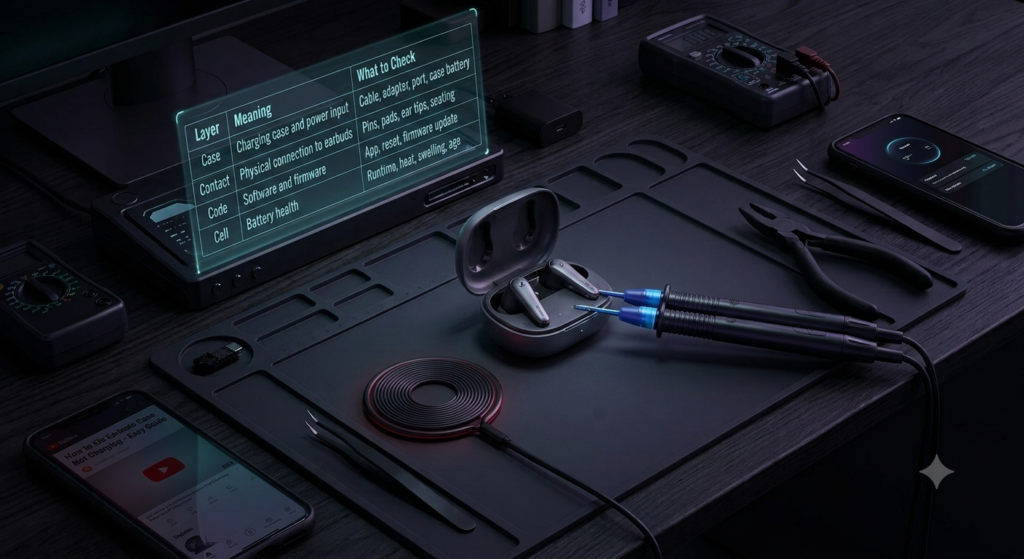
Use this simple framework throughout the article:
| Layer | Meaning | What to Check |
|---|---|---|
| Case | Charging case and power input | Cable, adapter, port, case battery |
| Contact | Physical connection to earbuds | Pins, pads, ear tips, seating |
| Code | Software and firmware | App, reset, firmware update |
| Cell | Battery health | Runtime, heat, swelling, age |
Most users jump directly to battery failure. In reality, “case” and “contact” solve more problems than “cell.”
Common Mistakes People Make
Mistake 1: Assuming the Earbuds Are Dead Too Quickly
A deeply discharged earbud may need time before it shows signs of life. Leave it in a charged case for 30–60 minutes before deciding it has failed.
Mistake 2: Cleaning the Speaker Mesh but Not the Charging Contacts
Many users clean the audio mesh and forget the metal charging pads. Charging failure often lives on the underside of the earbud, not near the speaker.
Mistake 3: Using Oversized Ear Tips
Foam tips and third-party silicone tips can prevent the lid from closing fully. If charging fails after changing tips, remove the tips and test again.
Mistake 4: Resetting Before Charging the Case
A reset may fail if the case or one earbud has no power. Charge the case first.
Mistake 5: Ignoring the App
The app can show whether the case sees both earbuds. That information is more useful than the case LED alone.
When to Repair or Replace Earbuds
You should consider repair or replacement if:
- The same earbud repeatedly stops charging after cleaning.
- The case only charges at a cable angle.
- The case pins are bent or stuck.
- One earbud never appears in the app.
- Runtime is poor even after full charging.
- Battery percentage jumps randomly.
- Charging creates heat.
- The earbuds were exposed to water.
- The case battery drains while unused.
- Reset and firmware update do not help.
For premium earbuds, replacement cases or single buds may be worth it. For budget earbuds, a new pair may be more practical.
FAQ: How to Fix Earbuds Not Charging
Why are my wireless earbuds not charging in the case?
Wireless earbuds usually stop charging in the case because the case has no power, the charging contacts are dirty, the earbuds are not seated correctly, the cable or adapter is faulty, or the earbuds need a reset. Start by charging the case with a known working cable and wall adapter. Then clean the metal contacts on both the earbuds and inside the case. If the app still does not detect the earbuds, reset them and update the firmware.
How do I fix one earbud not charging but the other works?
Remove both earbuds, clean the metal contact pads on the dead earbud, clean the matching case pins, and reinsert the earbud without any oversized ear tip or wing attached. Check whether the app detects that earbud. If it still stays at 0%, leave it in a fully charged case for 30–60 minutes, then reset the earbuds. If the same side repeatedly fails, the earbud battery or case pin may be damaged.
Why is my earbuds case not charging?
An earbuds case may not charge because of a faulty USB-C or Lightning cable, weak wall adapter, clogged charging port, damaged port, drained case battery, wireless charging misalignment, or internal battery failure. Test another cable and adapter first. Then inspect the charging port with a flashlight. If the case charges only when the cable is held at an angle, the port may need repair.
Can dirty earbuds stop charging?
Yes. Earwax, skin oil, dust, and pocket lint can block the small metal contacts that transfer power from the case to the earbuds. Even a thin invisible layer can cause one earbud to stop charging. Clean the contacts with a dry microfiber cloth, cotton swab, or soft brush. Use only a tiny amount of isopropyl alcohol on the swab if needed, and let everything dry before charging.
Should I replace earbuds if they are not charging?
Not immediately. First test the cable, adapter, case battery, charging contacts, seating, app status, reset, and firmware update. Replace the earbuds only if they still fail after troubleshooting, if the battery drains quickly after full charging, if the case port is damaged, if one earbud is permanently dead, or if there are safety signs such as heat, swelling, odor, or water damage.
People Also Ask
How do you revive completely dead earbuds?
Place the earbuds in a fully charged case, close the lid, and leave them for at least 30–60 minutes. A deeply discharged earbud may not show an immediate LED or app response. After that, clean the contacts, try a reset, and check the app. If one earbud remains invisible and never charges, the internal battery may have failed.
Why do my earbuds charge only when I press them down?
That usually means the earbud is not making stable contact with the case pins. The cause may be dirt, worn pins, a shifted ear tip, poor magnetic seating, or a slightly warped case. Remove the ear tips and test again. If pressing down is the only way charging works, the case or earbud contact system may need replacement.
Is it safe to charge earbuds overnight?
Most modern earbuds include charging protection, so occasional overnight charging is usually fine. However, it is better not to leave damaged, wet, overheating, or swollen earbuds plugged in. For long-term battery health, avoid constant heat and do not store earbuds fully drained for long periods.
Why does my earbud case light blink but not charge?
A blinking case light can indicate low battery, pairing mode, reset mode, charging error, or model-specific status. First check the brand app or manual. Then test another cable and adapter, clean the port, and leave the case plugged in for 30 minutes. If blinking continues without battery gain, the case battery or charging circuit may be failing.
Can firmware updates fix earbuds not charging?
Yes, in some cases. Firmware updates can fix battery reporting errors, case recognition problems, charging behavior bugs, and sleep-mode glitches. They cannot repair a physically damaged port, corroded contact, swollen battery, or dead lithium cell. Update firmware after confirming the case and contacts are clean and functional.
Conclusion: Fix the Charging Chain Before Replacing the Earbuds
Earbuds not charging is frustrating because the failure point is hidden. The case may look fine. The earbuds may look clean. The app may show confusing battery numbers. But the charging chain is simple once you break it down: power source, cable, case, contacts, software, and battery cell.
Start with the easy wins: charge the case, change the cable, clean the contacts, remove oversized tips, reseat the earbuds, check the app, reset, and update firmware. If one earbud remains dead after those steps, the issue is likely deeper: worn pins, internal battery failure, moisture damage, or case hardware failure.
A good pair of earbuds should charge predictably, disconnect when placed in the case, show accurate battery levels, and survive normal daily use. When they no longer do that — even after careful troubleshooting — replacement is not wasteful. It is the point where reliability matters more than another temporary fix.