
How to Update Earbuds Firmware | Complete Guide for Wireless Earbuds
Amazon Affiliate Disclosure
Earsbud.com may earn a commission when readers buy products through qualifying affiliate links. This does not increase the price you pay. Product mentions, replacement suggestions, accessories, cables, chargers, and earbud recommendations should always be judged by compatibility, safety, support quality, and real-world usefulness.
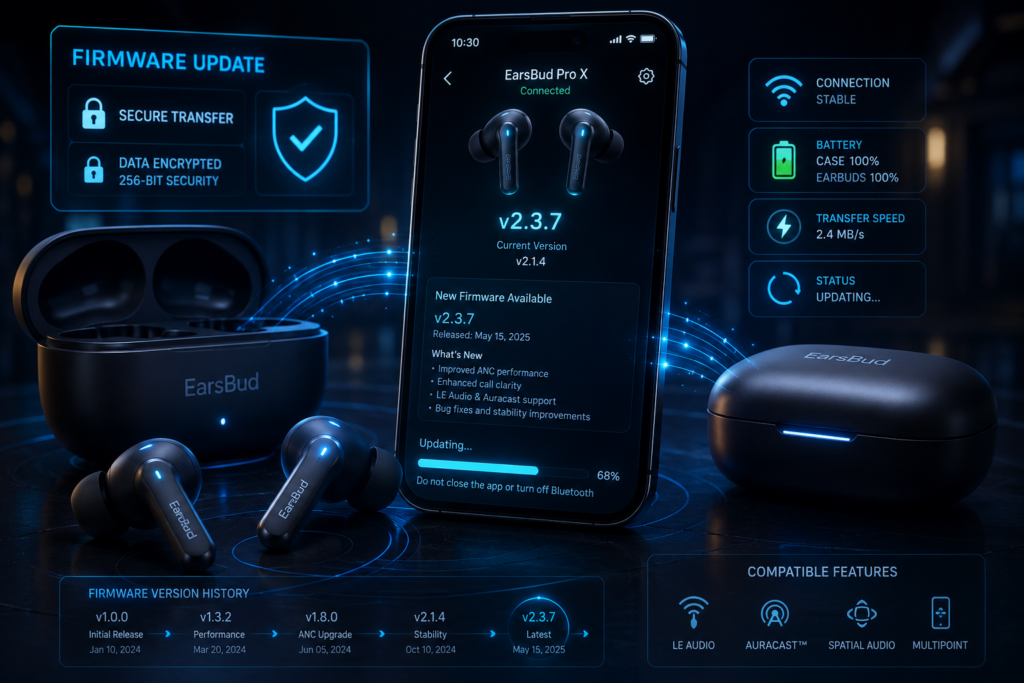
Earbuds are no longer simple Bluetooth accessories. Modern wireless earbuds run firmware that controls battery behavior, pairing, multipoint Bluetooth, noise cancellation, transparency mode, touch controls, microphone processing, spatial audio, codec stability, case communication, and even lost-earbud tracking.
That is why learning how to update earbud firmware matters. A firmware update can fix Bluetooth dropouts, improve battery reporting, repair app connection bugs, add new features, improve call quality, strengthen security, or support newer audio standards. It can also create temporary confusion if the update stalls, the app cannot find the earbuds, one earbud updates before the other, or the earbuds behave differently afterward.
This earbuds guide explains how to update earbud firmware safely across major brands, including AirPods, Samsung Galaxy Buds, Sony WF earbuds, Bose, Beats, JBL, Soundcore, Jabra, Nothing Ear, Skullcandy, Bowers & Wilkins, and other Bluetooth earbuds.
Quick Picks
| Problem or Goal | Start Here | Likely Cause | Best Fix |
|---|---|---|---|
| You want to update your earbuds safely | Safe Update Checklist | Normal firmware maintenance | Charge the earbuds and case, update the official app, and follow the manufacturer’s instructions. |
| You need the complete update process | How to Update Earbud Firmware Safely | You have not updated earbuds before | Identify the model, check the current firmware version, install the update, and test the earbuds afterward. |
| AirPods are not updating | How to Update AirPods Firmware | Automatic update conditions have not been met | Charge the case, connect it to power, and keep the AirPods near an Apple device connected to Wi-Fi. |
| Galaxy Buds update is not showing | Galaxy Buds Update Not Showing | Outdated app, delayed rollout, or hidden update option | Update Galaxy Wearable and the Buds plugin, reconnect the earbuds, and check Bluetooth device settings. |
| Sony firmware update is stuck | Sony Update Stuck | Slow Bluetooth transfer, battery saving, or app interruption | Keep the phone close, disable battery saving, update Sony Sound Connect, and retry. |
| Bose earbuds will not update | How to Update Bose Earbuds Firmware | The Bose app cannot detect the earbuds | Restart Bluetooth, reconnect through the Bose app, and keep both earbuds charged. |
| Beats firmware needs updating | How to Update Beats Firmware | Automatic Apple update or Android app update required | Keep Beats near an updated Apple device or use the Beats app on Android. |
| JBL firmware update fails | How to Update JBL Earbuds Firmware | App interruption or unstable Bluetooth | Update the JBL Headphones app, keep the phone nearby, and restart the update. |
| Soundcore firmware update is missing | How to Update Soundcore Earbuds Firmware | Outdated app, pairing problem, or delayed update | Update the Soundcore app, reconnect the earbuds, and check the firmware menu again. |
| You use Jabra, Nothing Ear, Skullcandy, or Bowers & Wilkins | Other Earbud Brands | Update method depends on the official companion app | Open the manufacturer’s app and check Device Settings, Product Information, or About. |
| The firmware update is not appearing | Firmware Update Diagnostic Matrix | Earbuds are already current, rollout is delayed, or the app is outdated | Check the installed firmware version, update the app, restart the phone, and check again later. |
| The companion app cannot detect the earbuds | Companion App Cannot Find Earbuds | Missing permissions, broken pairing, or one earbud is not connected | Restart Bluetooth, enable permissions, reconnect both earbuds, and pair them again if necessary. |
| Earbuds became worse after the update | After-Update Problems | The old Bluetooth profile conflicts with the new firmware | Restart the phone, forget the earbuds, reset them, and pair again from scratch. |
| Earbuds will not reconnect after updating | Clean Post-Update Reset Sequence | Stored pairing information is outdated | Confirm the firmware version, reset the earbuds, remove the old Bluetooth connection, and re-pair. |
| Battery drains faster after updating | Why Battery May Drain After Updating | ANC, spatial audio, multipoint, or background syncing may have changed | Review app settings, disable unnecessary features, reset the earbuds, and test the battery again. |
| Audio cuts out after updating | Firmware and Bluetooth Stability | Codec, multipoint, or Bluetooth profile changed | Re-pair the earbuds, test with one device, and temporarily use a standard audio mode. |
| The update disconnects or repeatedly fails | Earbud Firmware Update Risks | Low battery, phone sleep, weak Bluetooth, or an outdated app | Recharge everything, disable battery saving, keep the app open, and retry without interruptions. |
| You want to know what not to do during an update | Never Do This During an Update | Interrupting installation can cause errors | Do not reset the earbuds, close the app, turn off Bluetooth, switch phones, or let the battery die. |
| The charging case cannot remain powered | Firmware Update Costs | Damaged cable, adapter, charging port, or case battery | Test another compatible cable and adapter before considering case repair or replacement. |
| Old earbuds still have serious problems after updating | When Firmware Cannot Save Old Earbuds | Battery wear, hardware failure, or discontinued software support | Compare repair costs with replacement and check whether the model still receives app and firmware support. |
| You are buying new earbuds | What to Look for Before Buying | Long-term software support affects product reliability | Choose a brand with a reliable app, clear firmware versions, release notes, reset instructions, and regular updates. |
| You want newer features such as LE Audio or Auracast | LE Audio and Auracast Support | The feature requires compatible hardware, firmware, phone, and operating system | Confirm support across the earbuds, source device, operating system, and companion app before buying. |
What Is This Guide For?
This guide is for updating the software inside wireless earbuds and charging cases.
It covers:
- How to update earbud firmware
- Wireless earbuds firmware update steps
- Bluetooth earbuds software update safety
- AirPods firmware update process
- Samsung Galaxy Buds firmware update
- Sony earbuds software update
- Bose earbuds update
- JBL earbuds update
- Soundcore earbuds firmware update
- Beats earbuds update
- Jabra, Nothing Ear, Skullcandy, Bowers & Wilkins update basics
- Firmware update problems
- What to do after an update
- When to reset earbuds after firmware update
- How firmware affects battery, connection, ANC, multipoint, and audio stability
Who Needs This Guide?
You need this guide if:
- Your earbuds have a firmware update available.
- Bluetooth connection has become unstable.
- Battery percentage looks wrong.
- One earbud drains faster than the other.
- ANC or transparency mode behaves differently.
- Multipoint Bluetooth keeps switching incorrectly.
- The companion app says an update failed.
- Earbuds stopped connecting after a phone update.
- You want new features such as audio sharing, Find My support, or LE Audio features.
- You are deciding whether an older pair of earbuds still receives software support.
Firmware is not only about new features. It is part of long-term product health.
Benefits of Updating Earbud Firmware
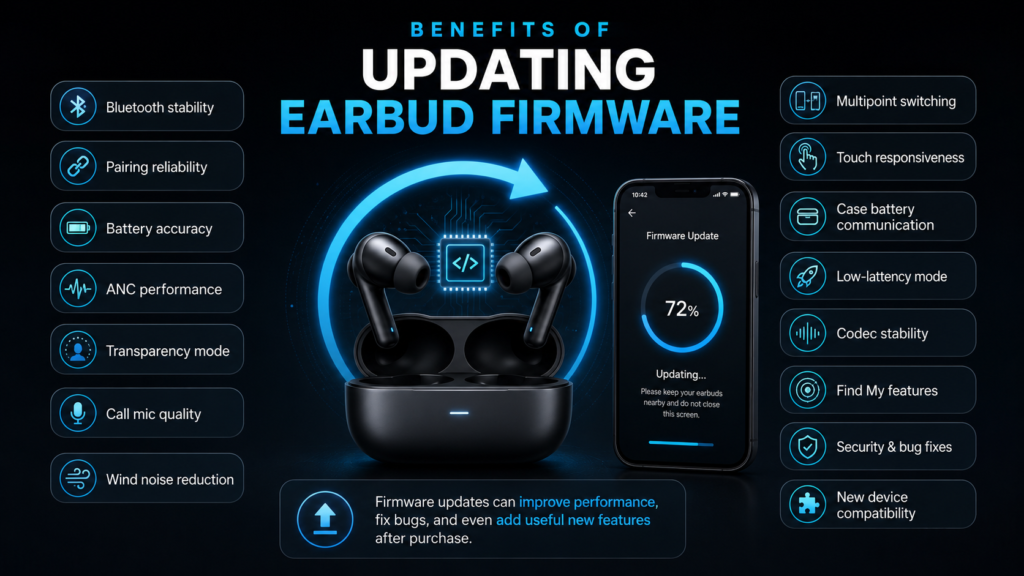
A good firmware update can improve:
- Bluetooth connection stability
- Pairing reliability
- Battery percentage accuracy
- ANC performance
- Transparency mode behavior
- Call microphone quality
- Wind noise reduction
- Multipoint switching
- Touch control responsiveness
- Case battery communication
- Low-latency mode behavior
- Codec stability
- Find My or lost-device features
- Security and bug fixes
- Compatibility with newer phones and laptops
Sony, for example, has used firmware updates on premium earbuds to add features such as audio sharing through LE Audio/Auracast support and Find My Device improvements for WF-1000XM5 users, showing how firmware can add meaningful functionality after purchase. (The Verge)
Safe Update Checklist Before You Begin
Before updating earbud firmware, prepare the earbuds properly.
Do This First
| Step | Why It Matters |
|---|---|
| Charge earbuds above 50% | Prevents shutdown during update |
| Charge the case above 50% | Case may be needed during transfer |
| Keep phone near earbuds | Prevents Bluetooth transfer failure |
| Use stable Wi-Fi | App may need to download firmware |
| Update the companion app | Old app versions may fail |
| Keep app open if required | Some updates transfer through app |
| Do not reset during update | Interrupting can cause errors |
| Avoid phone calls during update | Can interrupt Bluetooth/app session |
| Disable battery saver temporarily | Prevents app sleeping |
| Use official app only | Avoids unsafe firmware files |
Do Not Update If
- Earbuds are wet.
- Case is not charging.
- One earbud is dead.
- The app cannot detect both earbuds.
- Phone battery is very low.
- Bluetooth connection keeps dropping.
- You are about to leave Wi-Fi range.
- The case or earbuds feel unusually hot.
If the earbuds or case are not charging reliably, fix that first with how to fix earbuds not charging before attempting firmware updates.
How Earbuds Firmware Update Works
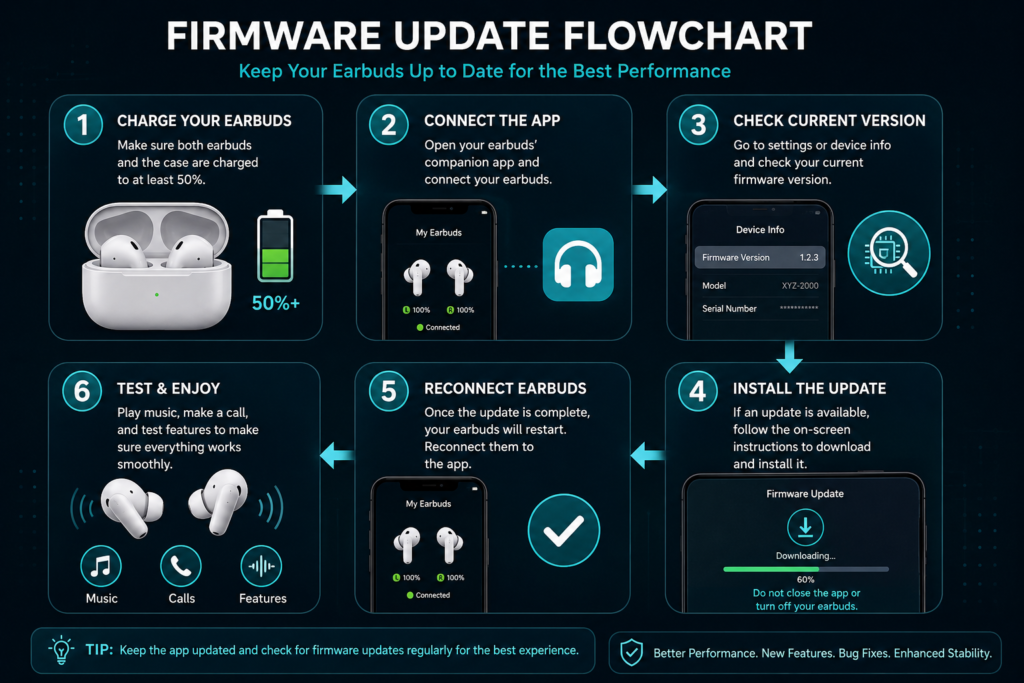
Most earbuds update through one of three systems:
| Update Method | Common Brands | How It Works |
|---|---|---|
| Automatic background update | AirPods, some Beats | Update installs when conditions are right |
| Companion app update | Samsung, Sony, Bose, JBL, Soundcore, Jabra, Nothing | App downloads and transfers firmware |
| Desktop app or utility | Some older models or specialist brands | Computer transfers update through Bluetooth/USB |
The update may involve the earbuds, the charging case, or both. Some brands update left and right earbuds separately. Some update the case firmware too. Some updates only appear after rollout reaches your region or model.
Step-by-Step: How to Update Earbud Firmware Safely
Step 1: Identify Your Exact Earbud Model
Do not assume all earbuds from the same brand update the same way.
Check:
- Model name
- Model number
- Case type
- App name
- Firmware version
- Phone operating system
- Region or market variant
Two earbuds that look similar may use different firmware branches.
Step 2: Install or Update the Official Companion App
Use the official app from the brand.
Common apps include:
| Brand | Common App / System |
|---|---|
| Apple AirPods | iOS/iPadOS/macOS Bluetooth settings |
| Beats | iOS Bluetooth settings or Beats app |
| Samsung Galaxy Buds | Galaxy Wearable app / Bluetooth settings on some Samsung phones |
| Sony WF earbuds | Sony Sound Connect app |
| Bose | Bose app |
| JBL | JBL Headphones app |
| Soundcore | Soundcore app |
| Jabra | Jabra Sound+ |
| Nothing Ear | Nothing X |
| Skullcandy | Skull-iQ / Skullcandy app depending on model |
| Bowers & Wilkins | Bowers & Wilkins Music app |
Only use official apps. Avoid random “firmware update” APKs, modified files, or unofficial tools unless the manufacturer explicitly provides them.
Step 3: Connect Earbuds to Your Phone
Open Bluetooth settings and confirm the earbuds are connected.
Then open the companion app and confirm:
- Left earbud is detected
- Right earbud is detected
- Case battery is visible if supported
- Firmware version is visible
- Update option appears
- App permissions are enabled
Step 4: Check the Firmware Version
Look for:
- Device settings
- About section
- Earbud information
- Software update
- Firmware version
- Device software
- Update available
Write down the current version before updating. This helps you confirm whether the update actually installed.
Step 5: Start the Update
When the app offers an update:
- Keep earbuds close to the phone.
- Keep earbuds out of the case unless the app says otherwise.
- Keep the case nearby and charged.
- Do not close the app unless instructed.
- Do not turn off Bluetooth.
- Do not use earbuds for calls or music.
- Wait until the update fully completes.
- Let the earbuds reconnect after update.
- Check the firmware version again.
Some earbuds restart after firmware installation. That is normal.
Step 6: Re-Pair or Reset If Needed
After a firmware update, some earbuds may need a clean Bluetooth connection.
Try this order:
- Restart the phone.
- Reconnect earbuds.
- Open companion app.
- Check firmware version.
- Test music and calls.
- If problems appear, forget the earbuds.
- Reset earbuds.
- Pair again from scratch.
How to Update AirPods Firmware
AirPods firmware updates are different from most earbuds because there is no normal “Update Now” button.
Apple says AirPods firmware updates are delivered automatically while AirPods are charging and within Bluetooth range of an iPhone, iPad, or Mac connected to Wi-Fi. Apple’s current support page also lists the latest firmware versions and explains how to check the firmware version from Bluetooth settings on iPhone, iPad, or Mac. (Apple Support)
AirPods Firmware Update Steps
- Update your iPhone, iPad, or Mac.
- Turn Bluetooth on.
- Connect AirPods to the Apple device.
- Connect the Apple device to Wi-Fi.
- Put AirPods in the charging case.
- Connect the charging case to power.
- Close the lid.
- Keep AirPods near the Apple device.
- Wait at least 30 minutes.
- Open the lid and reconnect.
- Check the firmware version again.
Apple’s guidance says that if AirPods still do not update, users should reset them and try the update process again. (Apple Support)
Can You Update AirPods on Android?
AirPods firmware updates require an Apple device such as an iPhone, iPad, or Mac. Android can pair with AirPods for audio, but it does not provide the same firmware update path.
How to Update Samsung Galaxy Buds Firmware
Samsung Galaxy Buds usually update through the Galaxy Wearable app or through connected-device settings on supported Samsung phones.
Galaxy Buds Firmware Update Steps
- Charge both earbuds and case.
- Connect Galaxy Buds to your phone.
- Open Galaxy Wearable.
- Select your Galaxy Buds.
- Open earbuds settings.
- Find earbuds software update.
- Download and install update.
- Keep the earbuds close.
- Do not use the earbuds during update.
- Confirm the new software version.
Samsung’s update path can vary by phone, One UI version, and Galaxy Buds model. If the update option is not visible in the app, check the Bluetooth device page on Samsung phones and make sure the Galaxy Wearable app and Buds plugin are current.
If Galaxy Buds Update Does Not Show
Try:
- Update Galaxy Wearable.
- Update Galaxy Buds plugin.
- Restart phone.
- Reconnect the Buds.
- Check the Bluetooth device settings page.
- Wait if the rollout has just started.
- Try another supported phone if needed.
How to Update Sony Earbuds Firmware
Sony earbuds usually update through the Sony Sound Connect app. Older guidance and user experience may reference Headphones Connect; Sony has moved toward the Sound Connect branding for newer versions.
Sony Earbud Firmware Update Steps
- Charge both earbuds and case.
- Connect earbuds to your phone.
- Open Sony Sound Connect.
- Confirm both earbuds are detected.
- Check the update notification or system section.
- Download the update.
- Keep the phone near the earbuds.
- Keep the app open if instructed.
- Wait for transfer and installation.
- Confirm the firmware version.
Sony firmware updates may take longer than expected because the firmware file has to transfer over Bluetooth and then install.
If Sony Update Gets Stuck
Try:
- Keep earbuds close to phone.
- Disable battery saver on phone.
- Update the Sony app.
- Restart phone.
- Restart earbuds.
- Reconnect and retry.
- Reset only after the update has failed, not while it is actively installing.
Sony’s recent firmware updates have added notable functionality, including LE Audio/Auracast-related audio sharing support for WF-1000XM5 and other premium models, which shows why keeping firmware current can matter beyond simple bug fixes. (The Verge)
How to Update Bose Earbuds Firmware
Bose earbuds usually update through the Bose app.
Bose Firmware Update Steps
- Charge earbuds and case.
- Connect earbuds to phone.
- Open the Bose app.
- Select your earbuds.
- Check for firmware or product update.
- Keep earbuds close to the phone.
- Let the update download and transfer.
- Do not close the app during transfer unless instructed.
- Wait for earbuds to restart.
- Test ANC, calls, and Bluetooth afterward.
If the Bose app cannot find the earbuds, remove the earbuds from Bluetooth settings, restart the phone, and pair again through the app.
How to Update Beats Firmware
Beats earbuds update automatically on Apple devices in a similar ecosystem style to AirPods. On Android, supported Beats models may use the Beats app.
Beats Firmware Update Steps on iPhone
- Update iOS.
- Connect Beats earbuds.
- Keep them near the iPhone.
- Charge the earbuds and case.
- Let the update install automatically.
- Check firmware version in Bluetooth settings if available.
Beats Firmware Update Steps on Android
- Install the Beats app.
- Connect earbuds.
- Open the app.
- Check device information.
- Install update if available.
How to Update JBL Earbuds Firmware
JBL earbuds usually update through the JBL Headphones app.
JBL Firmware Update Steps
- Charge earbuds and case.
- Open JBL Headphones app.
- Connect the earbuds.
- Select the earbuds.
- Look for firmware update notification.
- Start update.
- Keep earbuds close and app open.
- Confirm firmware version afterward.
JBL updates may include app feature improvements, ANC changes, EQ behavior, and connection refinements depending on model.
How to Update Soundcore Earbuds Firmware
Soundcore earbuds usually update through the Soundcore app.
Soundcore Firmware Update Steps
- Charge earbuds and case.
- Connect earbuds to phone.
- Open Soundcore app.
- Select your earbuds.
- Go to settings.
- Tap firmware update if available.
- Keep phone close.
- Wait for completion.
- Reconnect and test.
If the app fails, update the Soundcore app, restart the phone, remove the earbuds from Bluetooth settings, and pair again.
How to Update Jabra, Nothing Ear, Skullcandy and Bowers & Wilkins Earbuds
The process is similar across most brands.
General Companion App Update Method
- Install official app.
- Charge earbuds and case.
- Pair earbuds to phone.
- Open app and select product.
- Check device settings or About section.
- Start firmware update.
- Keep earbuds close.
- Do not interrupt update.
- Confirm firmware version.
- Test sound, calls, ANC, and battery.
If no update appears, the earbuds may already be current, the rollout may not have reached your region, or the model may no longer receive active updates. For broader buying and troubleshooting coverage, visit Earsbud.
Firmware Update Comparison Chart by Brand
| Brand | Update Method | Manual Button? | Needs App? | Common Issue |
|---|---|---|---|---|
| AirPods | Automatic near Apple device | No | No separate app | Update timing unclear |
| Beats | Automatic on Apple / Beats app on Android | Usually no | Sometimes | Version checking confusion |
| Samsung Galaxy Buds | Galaxy Wearable / device settings | Yes, when available | Usually | Update option varies by phone |
| Sony | Sony Sound Connect | Yes, when available | Yes | Slow transfer or app detection |
| Bose | Bose app | Yes, when available | Yes | App not finding earbuds |
| JBL | JBL Headphones app | Yes | Yes | App/connection interruption |
| Soundcore | Soundcore app | Yes | Yes | Update notification missing |
| Jabra | Jabra Sound+ | Yes | Yes | Earbuds not detected |
| Nothing Ear | Nothing X | Yes | Yes | App or firmware rollout delay |
| Bowers & Wilkins | Bowers & Wilkins Music app | Yes | Yes | App connection reliability |
Charts & Tables: Firmware Update Diagnostic Matrix
| Symptom | Likely Cause | Quick Test | Best Fix |
|---|---|---|---|
| Update not showing | Already current or rollout delay | Check firmware version | Wait or update app |
| Update starts then fails | Weak Bluetooth/session issue | Keep phone close | Restart, retry |
| One earbud missing | Charging or sync issue | Check left/right battery | Charge, reset |
| App cannot find earbuds | Permissions or pairing issue | Open Bluetooth settings | Forget and re-pair |
| Firmware version unchanged | Update not completed | Check version after reconnect | Repeat update process |
| Earbuds worse after update | Old Bluetooth profile conflict | Test after restart | Forget, reset, re-pair |
| Battery drains after update | New features or bug | Turn off ANC/spatial/multipoint | Update again/reset |
| Audio stutters after update | Codec or connection issue | Test standard mode | Re-pair, adjust settings |
| Case not updating | Case firmware separate | Check app details | Keep case charged |
| Update freezes | App background sleep | Disable battery saver | Keep app open |
Companion App Cannot Find Earbuds During Update
If the app cannot detect your earbuds, do not immediately assume the update failed.
Fix Order
- Put earbuds in the case.
- Close lid for 15–30 seconds.
- Restart phone Bluetooth.
- Reconnect earbuds in Bluetooth settings.
- Open the companion app.
- Give Bluetooth/location permissions if required.
- Update the app.
- Restart phone.
- Forget earbuds and pair again.
- Reset earbuds if still missing.
What to Do If Earbuds Act Weird After a Firmware Update
Firmware updates can change settings or expose old pairing problems.
Common After-Update Problems
| Problem | Likely Cause | Fix |
|---|---|---|
| Earbuds will not reconnect | Old Bluetooth profile conflict | Forget and re-pair |
| One side does not work | Sync issue | Dock both, reset |
| Battery drains faster | New features enabled | Check ANC/spatial/multipoint |
| App cannot detect earbuds | App cache or permissions | Update app, reconnect |
| Audio stutters | Codec or connection change | Change codec, reset |
| Touch controls changed | Settings reset | Reconfigure app |
| ANC feels different | Algorithm update | Recheck ANC settings |
| Multipoint behaves differently | Priority changed | Manage connected devices |
Clean Post-Update Reset Sequence
- Confirm firmware installed.
- Restart phone.
- Forget earbuds from Bluetooth settings.
- Reset earbuds.
- Pair again.
- Open companion app.
- Reconfigure settings.
- Test battery, calls, ANC and audio.
Firmware Updates and Battery Life
Firmware can improve or harm battery behavior depending on the update quality and settings.
Battery Improvements Firmware May Bring
- Better standby behavior
- More accurate battery percentage
- Improved ANC efficiency
- Better case-to-earbud communication
- Reduced idle drain
- Improved left/right battery balancing
- Smarter codec switching
- Better sleep mode
Why Battery May Drain After Updating
- New features were enabled
- ANC mode changed
- Multipoint turned on
- Spatial audio became active
- App background sync increased
- Battery reporting recalibrated
- A temporary bug appeared
- Earbuds need reset and re-pair
If battery remains worse after reset, continue with battery life tips for earbuds.
Firmware Updates and Bluetooth Connection Stability
Firmware often targets Bluetooth stability.
It may improve:
- Pairing speed
- Reconnection after case opening
- Multipoint switching
- Laptop compatibility
- Codec negotiation
- LE Audio behavior
- Left/right sync
- Call stability
- Dropout recovery
Bluetooth standards are also evolving. LE Audio and Auracast are increasingly relevant to earbuds, headphones, phones, PCs, TVs, and public audio systems. Microsoft has been testing shared Bluetooth audio features in Windows based on Bluetooth LE Audio and Auracast, but support depends heavily on compatible PC hardware and audio devices. (Windows Central)
Risks: What Can Go Wrong During an Earbud Firmware Update
Firmware updates are usually safe, but poor timing can create problems.
Main Risks
| Risk | What Causes It | How to Avoid It |
|---|---|---|
| Update failure | Low battery, Bluetooth drop | Charge first, keep close |
| App crash | Outdated app or phone issue | Update app and OS |
| One earbud update mismatch | One side disconnected | Ensure both buds are detected |
| Reconnection failure | Old Bluetooth profile | Forget and re-pair |
| Battery drain | New feature or bug | Check settings/reset |
| Lost settings | Firmware resets preferences | Screenshot settings first |
| Temporary audio bugs | Codec/profile change | Reset and reconfigure |
| Update not available | Regional rollout | Wait and check later |
| Unsupported model | Product out of update cycle | Consider replacement |
| Unsafe unofficial firmware | Third-party files | Use official app only |
Never Do This During Update
- Do not put earbuds away mid-update unless instructed.
- Do not turn off Bluetooth.
- Do not force-close the app.
- Do not reset earbuds while installation is active.
- Do not let phone battery die.
- Do not move far away from earbuds.
- Do not switch to another phone during update.
- Do not use unofficial firmware packages.
Costs: What Firmware Updates Cost
Most firmware updates cost nothing. The cost comes from fixing update-related problems or replacing unsupported hardware.
| Item | Estimated Cost | When Needed |
|---|---|---|
| Firmware update | $0 | Official app/system update |
| Companion app update | $0 | Required before firmware |
| Reset and re-pair | $0 | After update problems |
| New charging cable | $5–$25 | Case cannot stay powered |
| New wall adapter | $10–$30 | Charging unreliable |
| Replacement case | $40–$120+ | Case battery or update path issue |
| Single earbud replacement | $50–$120+ | One side dead or unsupported |
| New earbuds | $30–$300+ | No updates, poor battery, bad connection |
| Service appointment | Varies | Apple/Samsung/Sony/Bose support cases |
When Firmware Cannot Save Old Earbuds
Replace or upgrade if:
- The model no longer receives updates.
- Battery life is poor even after reset.
- One earbud repeatedly disconnects.
- The app no longer supports the product.
- The case battery is failing.
- New phone compatibility is poor.
- Firmware update failed repeatedly across multiple devices.
- Repair costs approach replacement cost.
Trends & Latest Tech in Earbud Firmware
1. Firmware Updates Are Becoming Feature Updates
Earbud firmware used to focus mostly on bug fixes. Now firmware can add major features after purchase, including audio sharing, device tracking, AI assistant compatibility, and LE Audio behavior. Sony’s firmware update for WF-1000XM5 added audio sharing through LE Audio/Auracast support and Find My Device improvements, showing how premium earbuds can gain new capabilities over time. (The Verge)
2. LE Audio and Auracast Depend on Software and Hardware
LE Audio is not only a hardware badge. It depends on compatible earbuds, phones, operating systems, firmware, and sometimes app support. Future firmware updates will increasingly decide whether earbuds can use audio sharing, public broadcast audio, and newer Bluetooth features.
3. Case Firmware Is Becoming More Important
As charging cases gain screens, touch controls, audio transmitters, microphones, and pairing features, the case itself becomes part of the firmware ecosystem. Future earbuds may update the earbuds and the case separately.
4. Companion Apps Are Becoming Control Centers
Earbud apps now manage ANC, transparency, EQ, touch controls, multipoint, fit tests, firmware, battery diagnostics, hearing-related features, and codec options. A bad app experience can make good earbuds feel broken.
5. AI Noise Processing Will Need Regular Updates
Newer earbuds increasingly use AI-style voice isolation, adaptive ANC, and environmental sound processing. These systems can improve through firmware, but they can also create new bugs that require patches.
Upcoming Models: What to Look for Before Buying
When buying new earbuds, check the brand’s firmware support culture.
Firmware Support Features That Matter
| Feature | Why It Matters |
|---|---|
| Official companion app | Needed for updates and controls |
| Clear firmware version page | Helps verify updates |
| Changelog/release notes | Shows what changed |
| Update reliability | Prevents failed installs |
| Case firmware support | Important for smart cases |
| LE Audio support | Future audio compatibility |
| Auracast readiness | Public/shared audio potential |
| Multipoint controls | Reduces device switching issues |
| Battery diagnostics | Helps troubleshoot drain |
| Reset documentation | Helps recover from bugs |
| Long-term update history | Indicates brand support quality |
Buying Rule
The best earbuds are not only the ones that sound good on day one. They are the ones that keep working well after phone updates, app updates, codec changes, and Bluetooth standards evolve.
FAQs
How do I update earbud firmware safely?
To update earbud firmware safely, charge both earbuds and the case, update the official companion app, connect the earbuds to your phone, keep them close, open the brand app, check for firmware updates, and let the update finish without closing the app or turning off Bluetooth. After the update, confirm the firmware version and test battery, calls, ANC, and Bluetooth stability.
Why is my earbuds firmware update not showing?
A firmware update may not show because your earbuds are already up to date, the rollout has not reached your device or region, the companion app is outdated, the earbuds are not fully connected, or the model no longer receives updates. Update the app, restart the phone, reconnect the earbuds, check the firmware version, and wait if the update was recently announced.
Can firmware updates fix earbuds cutting out?
Yes, firmware updates can fix Bluetooth dropouts, codec problems, multipoint switching issues, left/right sync problems, app detection errors, and call instability. They cannot fix damaged batteries, water damage, broken antennas, dirty charging contacts, or failing hardware. If cutting out continues after the update, forget and re-pair the earbuds, reset them, and test with the phone nearby.
Why did my earbuds get worse after a firmware update?
Earbuds may behave worse after a firmware update because the old Bluetooth profile conflicts with the new firmware, settings changed, ANC or multipoint turned on, codec behavior changed, or the update introduced a temporary bug. Restart the phone, forget the earbuds, reset them, pair again, and update the companion app. Then reconfigure your settings.
Do AirPods update firmware automatically?
Yes. AirPods firmware updates are delivered automatically when the AirPods are charging, near an iPhone, iPad, or Mac connected to Wi-Fi, and Bluetooth is on. Apple’s support page explains that users can check firmware versions in Bluetooth settings and recommends waiting at least 30 minutes under the right update conditions. (Apple Support)
People Also Ask
How long does an earbud firmware update take?
An earbud firmware update can take a few minutes to more than 30 minutes depending on brand, model, file size, Bluetooth transfer speed, phone battery settings, and whether both earbuds and the case need updating. AirPods updates may require waiting at least 30 minutes under Apple’s update conditions, while app-based updates usually show a progress bar. (Apple Support)
Can I use earbuds while firmware is updating?
No. Do not use earbuds for music, calls, gaming, or switching devices during a firmware update. Keep them close to the phone and follow the app’s instructions. Using the earbuds during update can interrupt Bluetooth transfer or installation, especially on models that require the app to stay open.
What happens if an earbud firmware update fails?
If a firmware update fails, restart the phone, charge the earbuds and case, update the companion app, reconnect the earbuds, and try again. If the earbuds still connect normally, the update may simply not have installed. If they behave strangely, forget them from Bluetooth settings, reset them, and pair again. Avoid resetting while an update is actively installing.
Can I downgrade earbud firmware?
Most consumer earbuds do not allow normal firmware downgrades. Brands generally provide only the latest approved firmware through official apps or system updates. If a new firmware version creates problems, the practical fixes are updating the app, resetting the earbuds, re-pairing, changing settings, waiting for a patch, or contacting support.
Do firmware updates improve earbud battery life?
Firmware updates can improve battery life by fixing standby drain, improving battery reporting, optimizing ANC, improving case communication, and reducing connection instability. But battery life can also seem worse after an update if new features turn on, settings change, or the earbuds need a reset. Test battery life after a clean re-pair with ANC and spatial features controlled.
Conclusion: Update Firmware Carefully, Then Test the Earbuds Like a System
Updating earbud firmware is one of the most useful maintenance steps for modern wireless earbuds. It can improve Bluetooth stability, battery reporting, app behavior, ANC, call quality, multipoint switching, and newer audio features. But firmware is also delicate. A good update process starts before you tap install: charge the earbuds, charge the case, update the app, keep the phone close, and avoid interruptions.
After updating, do not judge the earbuds from the first reconnect alone. Check the firmware version, test music, test calls, check ANC, confirm battery readings, and reconfigure app settings. If something feels wrong, forget, reset, and re-pair before assuming the update damaged the product.
The future of earbuds will depend even more on firmware. Smart cases, LE Audio, Auracast, adaptive noise control, AI voice processing, multipoint switching, and battery health tools will all rely on software support. The best earbuds will not only sound good — they will keep improving after you buy them.